
How to connect a WhatsApp AI chatbot via n8n in AnyLinga
Need a WhatsApp AI chatbot that replies to customers while your team sees the conversation in Kommo? AnyLinga Connect sends incoming text to n8n and sends your AI agent's reply back to the customer.
The n8n WhatsApp connection uses a webhook and callback. Below, you'll learn how to connect a WhatsApp AI chatbot, set up message processing, and test replies without Salesbot.
What you'll need
- An active AnyLinga account: it must not be blocked due to nonpayment or an expired trial. Connect is available on all plans.
- WhatsApp or WhatsApp Business API connected to AnyLinga.
- Your AI agent and an n8n workflow with an HTTPS URL for the Webhook node.
- A connected Kommo account for working with conversations and lead filters.
How messages pass through n8n
AnyLinga sends each incoming customer text message to your n8n workflow's webhook, subject to the configured filters. The AI agent processes the message, and the workflow returns a reply through the callback.
AnyLinga translates the reply if needed, sends it to the customer through the same channel, and adds it to the Kommo chat. Incoming messages continue to arrive in Kommo as usual: Connect runs in parallel.
This lets AI handle first-line questions while keeping the full conversation available to your team in Kommo. Connect works with WhatsApp and other channels connected to AnyLinga, including Telegram, Instagram, Facebook, and others.
Connect the webhook in AnyLinga
1. Open the integration settings
- In Workspace, open Integrations.
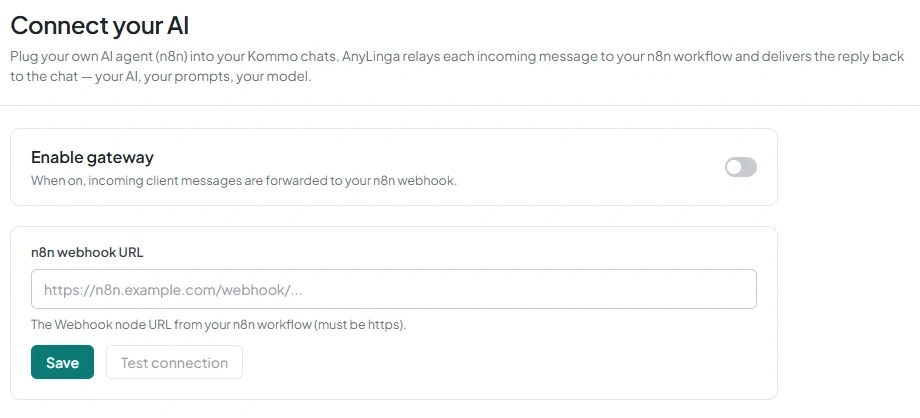
- On the Connect your AI page, find the gateway settings.
2. Download the template and get the webhook URL
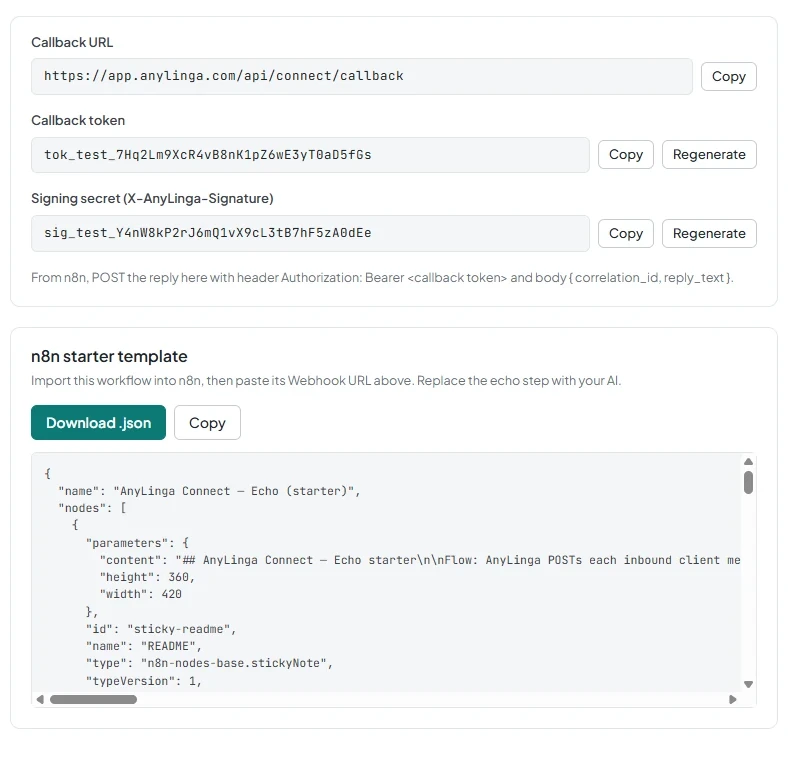
- In n8n starter template, click Download .json.
- Import the file into n8n and get the URL of your workflow's Webhook node.
- Paste the URL into n8n webhook URL.
3. Save the gateway settings
- Turn on Enable gateway to forward incoming customer messages to your n8n webhook.
- Click Save.
4. Copy the callback and signing settings
- Copy Callback URL and Callback token to send replies from n8n.
- Copy Signing secret (X-AnyLinga-Signature) to verify incoming requests.
- Use Copy next to the value you need. The fields are read-only; use Regenerate to update the values.
Set up processing and replies in n8n
5. Set up message reception
- In the imported workflow, configure the Webhook to receive JSON.
- Use the incoming fields: message_text, translated_text, conversation_id, channel, contact_id, lang, agent_lang, correlation_id, callback_url.
- Save correlation_id for the reply to this message.
- Set up HMAC-SHA256 verification of the X-AnyLinga-Signature header using the secret you copied.
6. Connect your AI agent's processing
- Pass the text from the incoming request to your AI agent.
- Prepare the reply text for the reply_text field.
- Keep the reply associated with the original correlation_id.
7. Set up replies through the callback
- Send a POST request to the address in Callback URL.
- Add the header Authorization: Bearer <callback token>, using the value from Callback token.
- Send the JSON body { "correlation_id": "<incoming message correlation_id>", "reply_text": "<reply text>" }.
Choose when to run the AI agent
8. Set filters for open leads
- Open Trigger filters.
- Set Pipelines (lead is in any of these) if needed.
- Add Lead tags (lead has any of these) or the Lead field is filled condition.
- Click Save.
9. Leave filters empty to process all messages
- If you don't need lead-based restrictions, leave Trigger filters empty.
- The gateway will then send every incoming customer text message to n8n.
Test the connection and conversation
10. Test the webhook response
- Click Test connection.
- If the test succeeds, you'll see n8n responded in {ms} ms.
- If you see No valid response from n8n, check n8n webhook URL and request handling in the workflow, then test again.
11. Test the full message flow
- Send a text message from a customer's WhatsApp account to the connected channel. If filters are configured, use a customer with a matching open lead.
- Check that n8n received the message and sent a callback with the original correlation_id and reply_text.
- Make sure the reply reached the customer in WhatsApp and appeared in the Kommo chat.
- Check that the customer's original message is also still in Kommo.
Get in touch
We reply during business hours.
Already using AnyLinga?
Describe your question and we'll reply on WhatsApp or by email.
New to AnyLinga?
Try it yourself, or we'll set it up for you when you pay for the first month.