
WhatsApp for teams: work without a CRM in AnyLinga Inbox
Need WhatsApp for teams with multiple agents sharing one account? In AnyLinga Inbox, your team chats with clients in a browser: employees take conversations, transfer them to each other, and leave internal notes.
This lets your sales team share WhatsApp without a CRM. Here's how to connect Inbox, invite employees, and set up conversation workflows.
What you'll need
- An AnyLinga account with a connected WhatsApp or WhatsApp Business API channel.
- The Workspace plan or a 7-day trial. Inbox is included in the Workspace plan. See the pricing page for details.
- No CRM connected to the same AnyLinga account. If you use Kommo, disconnect it before connecting Inbox.
How shared WhatsApp works in Inbox
AnyLinga Inbox is a WhatsApp support system where your team handles client conversations instead of using a CRM. You can assign a responsible user, change the status, and save internal context for each conversation.
Inbox supports the channels connected in AnyLinga: WhatsApp, WhatsApp Business API, Telegram, Instagram, and Facebook. The cost of each channel depends on your plan.
Inbox works in a browser. There is no separate mobile app for Inbox.
Connect Inbox to your AnyLinga workspace
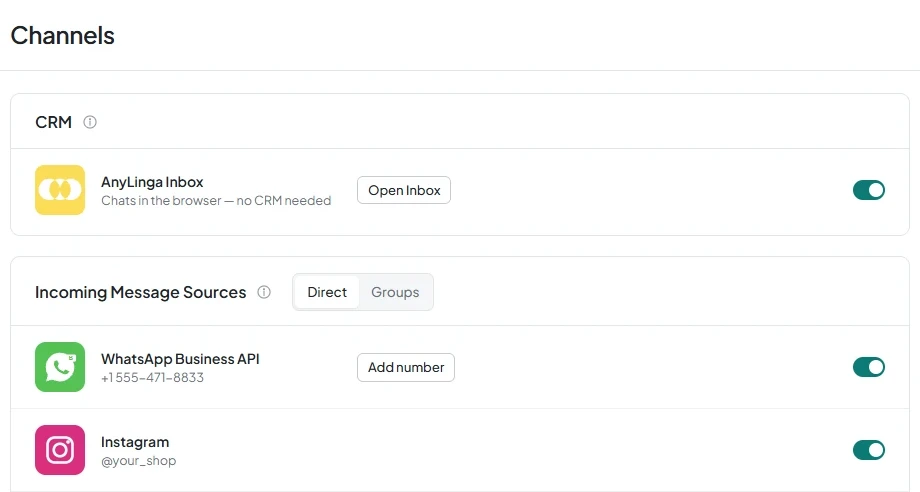
1. Enable Inbox in your workspace
- Open Channels in your AnyLinga workspace.
- Find the AnyLinga Inbox card labeled Chats in the browser — no CRM needed and enable the connection.
- The Awaiting confirmation status and the prompt Sign in to Inbox and confirm the connection will appear.
2. Confirm the connection in Inbox
- Sign in to Inbox.
- In the Connect your AnyLinga workspace? prompt, click Connect.
3. Open the connected Inbox
- In your AnyLinga workspace, click Open Inbox to sign in using a one-time link.
- Employees who are already on the team can also sign in with Google.
Invite your team and set up assignment
4. Create an invitation for an employee
- Open Team → Invite.
- Click Create invitation.
- Share the generated link with the employee.
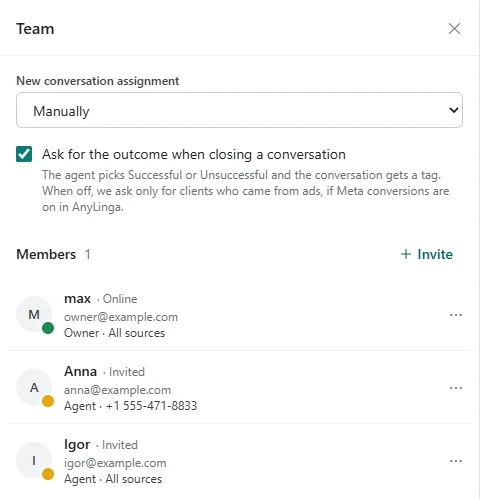
5. Set up roles and channel access
- The team has two roles: Owner and Agent.
- Configure Source access for each agent: specify the available channels or select All sources.
- The owner can see all conversations.
- To revoke an employee's access, use Disable access.
6. Choose how to assign conversations
- In Team, find New conversation assignment.
- Select manually to assign responsible users yourself.
- Select round robin among online agents to distribute new conversations among agents who are online.
- Enable Ask for the outcome when closing a conversation to record outcomes.
Work with conversations
7. Find the conversations you need
- Open Mine to work with conversations assigned to you.
- Check Unassigned to find conversations without an assigned employee.
- Use All open, Completed, and Snoozed to view conversations by status.
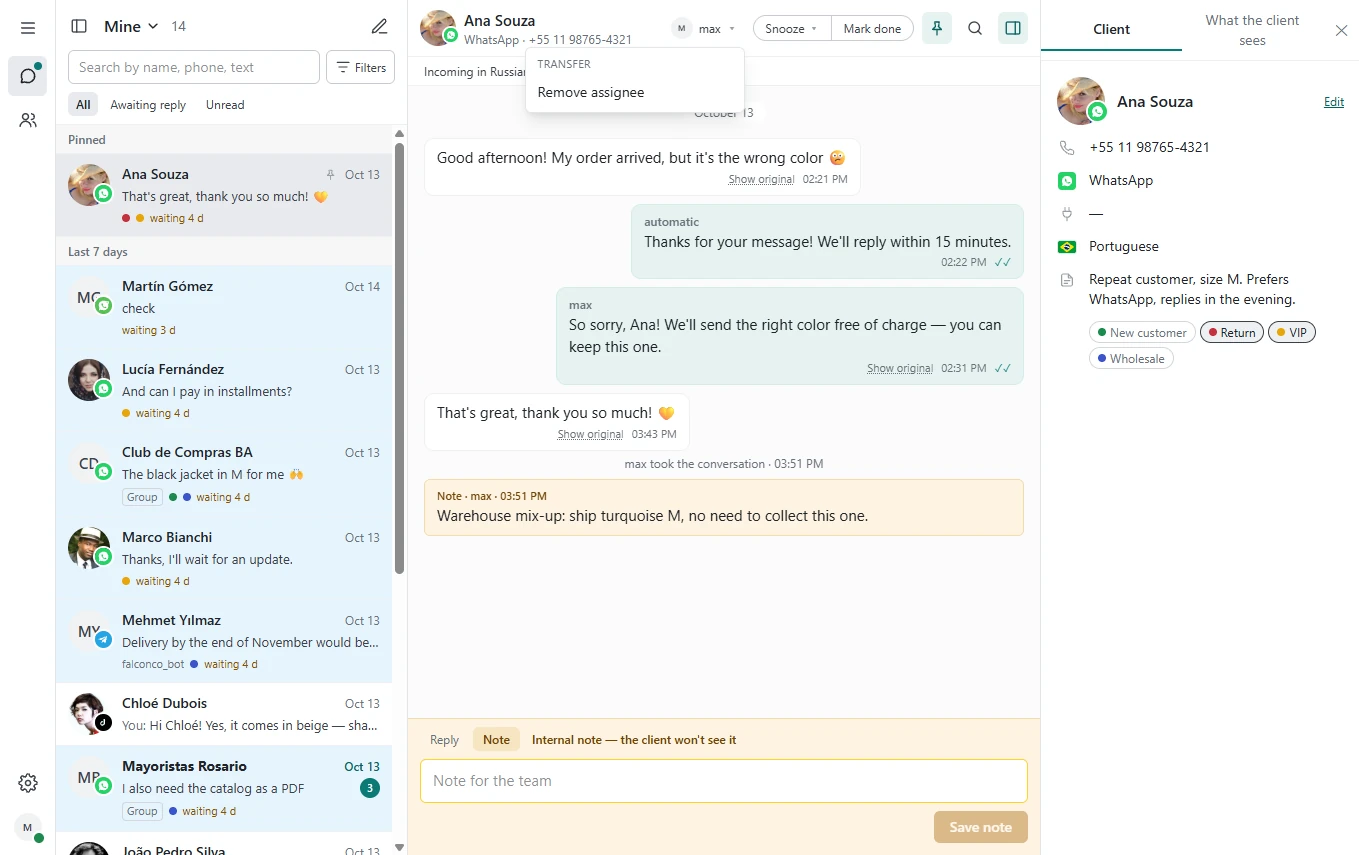
8. Assign a responsible user
- Open a conversation and find Responsible user.
- Click Take to take the conversation.
- Use Transfer to hand it over to another employee, or Remove assignee to clear the assignment.
9. Snooze or pin a conversation
- Click Snooze and select 1 hour, 3 hours, Until tomorrow 9:00, or Pick a time.
- Use Pin to the list to pin the conversation.
10. Close a conversation and record the outcome
- Click Mark done when you have finished working on the conversation.
- If the outcome prompt is enabled, select Successful or Unsuccessful under How did the conversation end?.
- To resume a completed conversation, click Back to work.
Save context for your team
11. Add an internal note to a conversation
- Switch to Note mode.
- Check for the prompt Internal note — the client won't see it.
- Write the information for your colleagues and click Save note.
12. Fill in the client profile
- Save relevant information in Note about the client.
- In Tags, use Add tag.
- To view advertising details, check the From ad section in the client profile.
13. Use messaging tools
- To begin a conversation, use Start a chat.
- Use Quick replies and WhatsApp templates to prepare messages.
- Use message translation when needed.
- Use Send later to schedule a message.
Get in touch
We reply during business hours.
Already using AnyLinga?
Describe your question and we'll reply on WhatsApp or by email.
New to AnyLinga?
Try it yourself, or we'll set it up for you when you pay for the first month.