
How to register and sign in to AnyLinga
You can register and sign in to AnyLinga with email or Google. If you forgot your password, request a reset link on the sign-in page.
Below, you'll learn how to create an account, regain access, update your details, and contact support.
What you'll need
- An email address you can access.
- A Google account if you want to sign in with Google.
- Your AnyLinga password if you've already set one and are signing in with email.
Register with email or Google
1. Choose a registration method
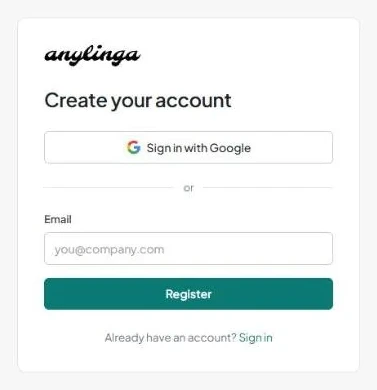
- Open the Create your account page.
- To register with email, fill in the Email field and click Register. No card is required.
- To register with Google, click Sign in with Google. If an AnyLinga account with that email already exists, Google will connect to it automatically. Otherwise, a new account will be created.
2. Verify your email
- After you register with email, you'll see Check Your Email. Follow the link in the email to set a password and activate your account.
- If you see Account Already Exists, click Sign in or Forgot password?.
The verification link expires in 1 hour. If you see “This verification link is invalid or has expired.”, register again.
3. Set a password and open your dashboard
- On the Set Your Password page, fill in Password and Confirm Password.
- Click Set Password & Continue. You'll be signed in to your dashboard immediately, and your 7-day trial will begin.
- Learn more about the service in What is AnyLinga?.
Your password must contain at least 8 characters, and the values in both fields must match. You won't receive another trial if the email or Google account belonged to a deleted AnyLinga account.
Sign in and reset your password
4. Sign in to your account
- Open the Sign in to your account page.
- Enter your Email and Password, then click Sign in. To sign in with Google, click Sign in with Google.
- If you don't have an account yet, select Don't have an account? Register.
5. Request a password reset link
- On the sign-in page, click Forgot password?.
- On the Reset Your Password page, enter your email and click Send Reset Link.
- Whether or not an account exists, you'll see this message: “If an account exists with that email, we've sent a password reset link. The link expires in 1 hour.”
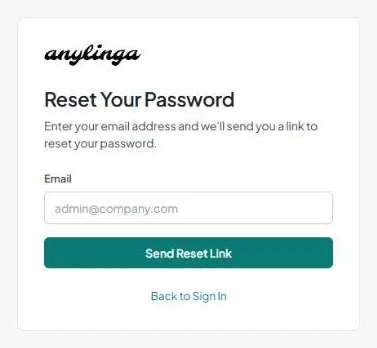
The email is sent only for accounts with a password set. If you registered with Google and haven't set a password, use “Sign in with Google”. After signing in, you can set a password on the “Account” tab.
6. Set a new password
- Follow the link in the email. On the Set New Password page, fill in New Password and Confirm Password.
- Click Reset Password & Sign In. You'll be signed in to your account with the new password.
- If you see “This reset link is invalid or has expired.”, click Request a new link.
The link expires in 1 hour. Your new password must contain at least 8 characters, and the values in both fields must match.
Email, password, and Google on the “Account” tab
7. Open your account details
- Go to Settings → Account.
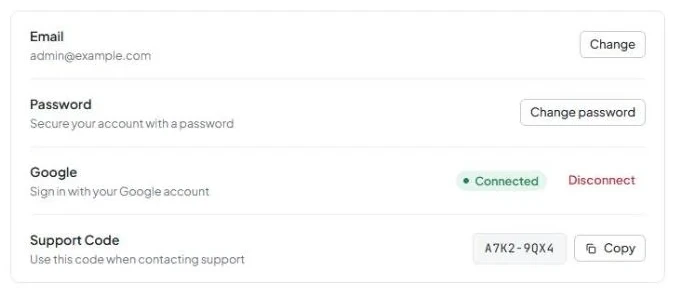
- Here you'll find the Email, Password, Google, and Support Code rows.
8. Change your email
- In the Email row, click Edit.
- Fill in New email and click Save.
- After saving, you'll see Email updated.
An email address used by another account won't be accepted.
9. Set or change your password
- In the Password row, click Change password.
- If you've already set a password, fill in Current password.
- Fill in New Password and Confirm new password. After the change, you'll see Password updated.
Your password must contain at least 8 characters, and the new password values in both fields must match.
10. Connect or disconnect Google
- In the Google row, check the status: Connected or Not connected.
- To add Google sign-in, click Connect.
- To remove the connection, click Disconnect. If your account doesn't have a password yet, set one first.
You can't connect a Google account that's already linked to another AnyLinga account.
Below is the “Delete account” section with the “Delete account” button. Deletion requires two-step confirmation using the word “confirm”. Learn more in account settings.
Support Code and contacting support
11. Copy your Support Code
- Open Settings → Account and find Support Code.
- Click Copy. You can also copy the code at the bottom of the sidebar.
The code uses the format XXXX-XXXX and contains letters and numbers. Use it when contacting support.
12. Contact support
- Open the Support menu and click New ticket.
- Describe your question and include your Support Code. Attach files if needed.
- Check for replies on the tickets page. You'll also receive an email notification when there's a reply.
- If you prefer to chat on Telegram, follow the @AnyLinga_bot link on the same page.
You can attach up to 5 files to a ticket, up to 10 MB each.
Did you find this article helpful?
Get in touch
We reply during business hours.
Already using AnyLinga?
Describe your question and we'll reply on WhatsApp or by email.
New to AnyLinga?
Try it yourself, or we'll set it up for you when you pay for the first month.