
Instagram CRM: How to connect Instagram and Facebook Messenger to Kommo with AnyLinga
To use Instagram CRM messaging and receive Facebook Messenger messages in Kommo, connect your Instagram account or Facebook Page in AnyLinga. Conversations will appear in Kommo chats, where you can reply with text and files.
Below are the steps to connect both channels, configure message handling, and restore Instagram access.
What you'll need
- An AnyLinga account for use with Kommo.
- For Instagram, a professional account: business or creator. A Facebook Page is not required.
- For Facebook Messenger, access to the Facebook Page you want to connect and permission to grant AnyLinga access to it.
How the connection works
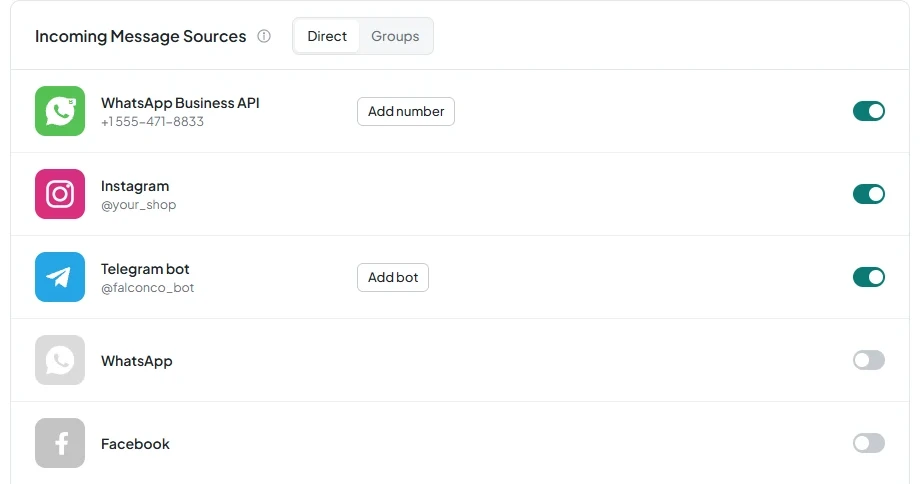
Connect channels in the Channels menu, under Incoming Message Sources. Instagram and Facebook each have a separate row with a toggle.
Each account or page is a separate channel. The cost is $21 per channel per month on any plan. See the pricing page for details.
You can connect one Instagram account and one Facebook Page per AnyLinga account. In Kommo, chats arrive from the AnyLinga source through the Instagram and Facebook channels.
How to connect Instagram
1. Open channel settings
- In AnyLinga, open Channels.
- Find Incoming Message Sources and the Instagram row.
2. Grant access to Instagram
- Turn on the toggle in the Instagram row.
- Log in through Instagram with the account you want to connect and grant access.
- Return to your AnyLinga dashboard and check for the Connected status.
3. Check the connection
- If you see Failed to start Instagram connection, try connecting again: log in to Instagram and grant access.
- After returning to the dashboard, check that the status is Connected.
How to connect Facebook Messenger
4. Select a Facebook Page
- In the Channels menu, under Incoming Message Sources, turn on the toggle in the Facebook row.
- Log in through Facebook.
- In the Meta window, grant access only to the page you want to connect.
5. Check the connected page
- Return to your AnyLinga dashboard. The Facebook row should show the page name.
- If you see Failed to start Facebook connection, try connecting again and grant access to the page you want to connect.
How to work with messages in Kommo
6. Configure message handling
- In Processing Rules, set the pipeline, stage, and responsible user for leads.
- Choose how to assign the responsible user: Round-robin, Random, or Specific user.
- Use Source field on contact for the Instagram address in the format instagram.com/username.
- The Instagram and Facebook tags are available to distinguish inquiries.
7. Open the conversation in Kommo
- Find the chat with the AnyLinga source and the Instagram or Facebook channel.
- Incoming messages can include text and one attachment: an image, video, audio, or file.
- Other content types, such as a post or story mention, arrive as a link document.
- Customer quotes are passed to the chat. Delivery and read statuses are also displayed.
8. Reply to the customer from Kommo
- Send text or a file from the Kommo chat.
- Before replying, check when the customer last sent a message.
9. Check the ad note
- When a customer arrives from a Click-to-Messenger or Click-to-Instagram Direct ad, a note is added to the lead.
- Read more about handling these inquiries.
What to do if Instagram disconnects
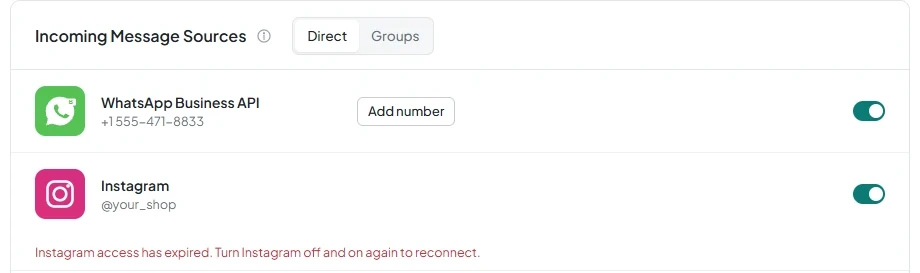
AnyLinga refreshes the Instagram access token every night and maintains the webhook subscription. If access is lost, a warning appears in the channel row, and the account owner receives an email in English with the subject “Instagram disconnected”.
10. Check the channel warning
- Open Channels and find the Instagram row.
- Check for the message Instagram access has expired. Turn Instagram off and on again to reconnect.
11. Turn off Instagram
- Turn off the toggle in the Instagram row.
- In the Disconnect {{name}}? window, review the warning: Messages will stop arriving through it. You can connect it again at any time.
- Click Disconnect.
12. Reconnect Instagram
- Turn the Instagram toggle on again.
- Log in to Instagram and grant access.
- Return to your AnyLinga dashboard and check for the Connected status.
Get in touch
We reply during business hours.
Already using AnyLinga?
Describe your question and we'll reply on WhatsApp or by email.
New to AnyLinga?
Try it yourself, or we'll set it up for you when you pay for the first month.