
How to choose a translation model and protect terms from translation in AnyLinga
Should you choose DeepL or ChatGPT for translation? In AnyLinga, you can choose an engine for Kommo conversations and add brand, product, and plan names to the translation glossary.
Protected terms stay untranslated in incoming and outgoing messages. These settings apply to the entire account.
What you'll need
- An AnyLinga account where you configure translation for Kommo.
- A plan that includes translation — check the plans.
- Names you want to keep untranslated, such as SunVilla, ProMax 300, or Gold Plan.
How to choose DeepL or ChatGPT
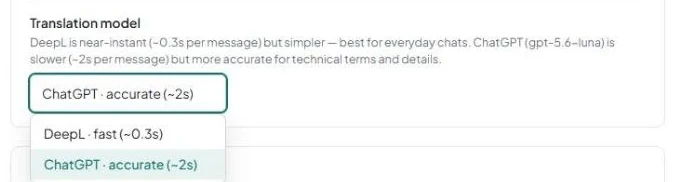
DeepL is selected by default. In the dashboard, it is described as a nearly instant, simpler option for everyday conversations. ChatGPT is slower but handles terms and details more accurately. The speed estimates of ~0.3s and ~2s come from the dashboard labels and are not guaranteed translation times.
One selection applies to the entire account: all channels and all incoming and outgoing messages. The cost is the same: one translated message uses 1 credit, regardless of the engine or message length. Learn more about translation credits.
1. Open translation settings
- Click Settings — the gear icon at the bottom of the sidebar.
- Go to the Language & Time tab.
- Find the Translation model row.
2. Choose an engine
- Open the list in the Translation model row.
- Select DeepL · fast (~0.3s) for everyday conversations or ChatGPT · accurate (~2s) when accuracy with terms and details matters more.
What happens if an engine fails
If the selected engine returns an error or responds in the wrong language, AnyLinga automatically sends the message to the other engine.
If both engines fail, the original text is delivered. Learn more about how translation works.
How to keep a brand name untranslated
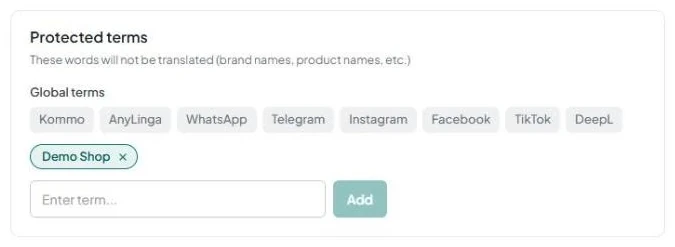
On the Language & Time tab, find the Protected terms card. Add words you want to keep untranslated, such as brand, product, or plan names.
3. Add a protected term
- In the Enter term... field, enter a name, such as SunVilla, ProMax 300, or Gold Plan.
- Click Add or press Enter.
4. Remove a term you no longer need
- Find your term in the Protected terms card.
- Click × on the term's tag.
5. Check a new message in Kommo
- Open a Kommo chat with a new translated message containing the term you added.
- Check that the name remains exactly as the customer or sales rep wrote it.
How protected terms work
Matching uses whole words and is case-insensitive. The term itself is preserved exactly as the customer or sales rep wrote it. This rule applies to incoming and outgoing messages.
If a message consists only of protected terms, links, or phone numbers, it is not translated.
Changes apply immediately to new messages. Messages already delivered are not translated again.
Get in touch
We reply during business hours.
Already using AnyLinga?
Describe your question and we'll reply on WhatsApp or by email.
New to AnyLinga?
Try it yourself, or we'll set it up for you when you pay for the first month.