
How to see the conversation as your customer sees it in Kommo with AnyLinga
Want to check how your customer sees a translated message? The AnyLinga widget in a Kommo record shows original incoming messages and translated replies—the exact text the customer received.
If you need WhatsApp conversation history in Kommo, open a lead, contact, or customer record. The conversation widget in a Kommo record is part of the AnyLinga integration.
What you'll need
- Kommo connected to AnyLinga: connection instructions.
- A PRO plan or an active 7-day trial: plans.
- A record with a linked contact; lead records use the contacts linked to that lead.
What the widget shows
Incoming messages appear on the left: the customer's original text before translation and their name. On the right are the agent's translated replies, exactly as the customer received them.
Messages are grouped by date, with times in HH:MM format. The widget scrolls to the latest message and refreshes the conversation every 15 seconds.
The chat is identified using the record's contacts: the primary contact is checked first, and merged contacts are also included. Lead records use their linked contacts.
How to read the conversation and change the language
1. Open the widget in a record
- Open a lead, contact, or customer record in Kommo.
- Open the AnyLinga widget in the record. If conversation history already exists, the panel opens automatically.
2. Compare the customer's messages with your replies
- Read the customer's original messages on the left and the agent's translated replies on the right.
- Use the date separators and message timestamps to follow the conversation.
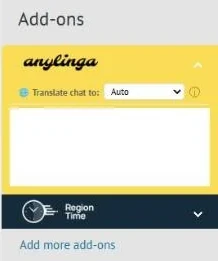
3. Set the chat's translation language
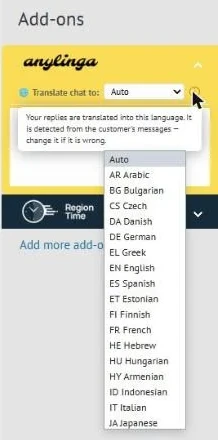
- Open the 🌐 Translate chat to: list. Auto means the language is detected from the customer's messages.
- Check the ⓘ hint: Your replies are translated into this language. It is detected from the customer's messages — change it if it is wrong.
- If the detected language is incorrect, select the right one. The selection applies to this chat; you can set it before the first message.
- Learn more: how translation works.
What else is in the panel
The panel includes a list of scheduled messages and a templates button. Learn more: scheduled messages and quick reply templates.
The Translation credits: N remaining line shows your remaining credits. When credits run low, the Top up link appears. Learn more: translation credits.
What to do if the conversation doesn't appear
Loading messages... — wait for loading to finish. No messages yet — there is no conversation in the widget yet. If there is no conversation yet but the phone number has WhatsApp, WhatsApp account detected appears.
No phone number found for this contact appears when the record has no linked contact. Add a contact to the record.
If you see Authentication failed. Make sure Kommo is connected in AnyLinga., check the Kommo connection. Failed to load messages means the conversation could not be loaded.
Subscription expired also appears when a trial ends without payment. To continue, use Renew subscription. The widget is not available on Startup: if you see PRO plan required, use Upgrade to PRO. See the plans page for terms.
4. Activate the widget through Kommo settings
- If the widget is inactive, open Channels in AnyLinga and find the CRM block.
- In the Kommo row, click the yellow Click "Save" in widget settings button to open the Kommo widget settings at <subdomain>.kommo.com/settings/widgets/.
- In the settings, click Save.
Get in touch
We reply during business hours.
Already using AnyLinga?
Describe your question and we'll reply on WhatsApp or by email.
New to AnyLinga?
Try it yourself, or we'll set it up for you when you pay for the first month.