
How to set up translation for each Kommo employee in AnyLinga
How do you set up message translation in Kommo when employees use different languages? In AnyLinga, you can enable translation and choose a working language in Kommo for each employee.
Set up message translation under Automation → Translation. Below are the steps to load employees and configure automatic message translation.
What you'll need
- A connected Kommo account: connection instructions.
- A plan that includes translation. Translation is not available on other plans. See plans.
- The PRO plan if you need individual employee settings.
Load employees from Kommo
1. Open the Translation page
- In the menu, select Automation → Translation.
- At the top right, you will see Last synced: <date> and the Refresh from CRM button.
- Connecting Kommo does not populate the table automatically. The empty list shows: “No employees yet. Click "Refresh from CRM" to sync.”
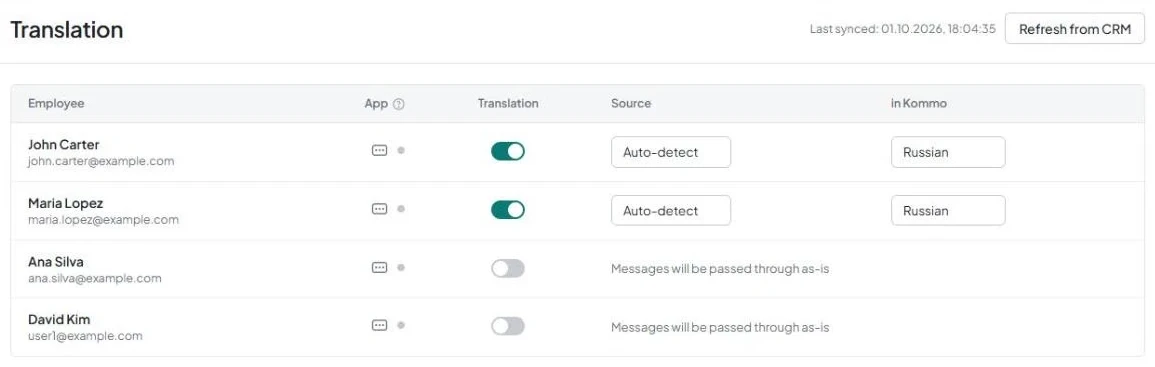
2. Click Refresh from CRM
- During the update, the button displays Syncing....
- AnyLinga reads all Kommo users: it adds new users, updates names, emails, and groups, and removes users who are no longer in Kommo. User groups are also synced.
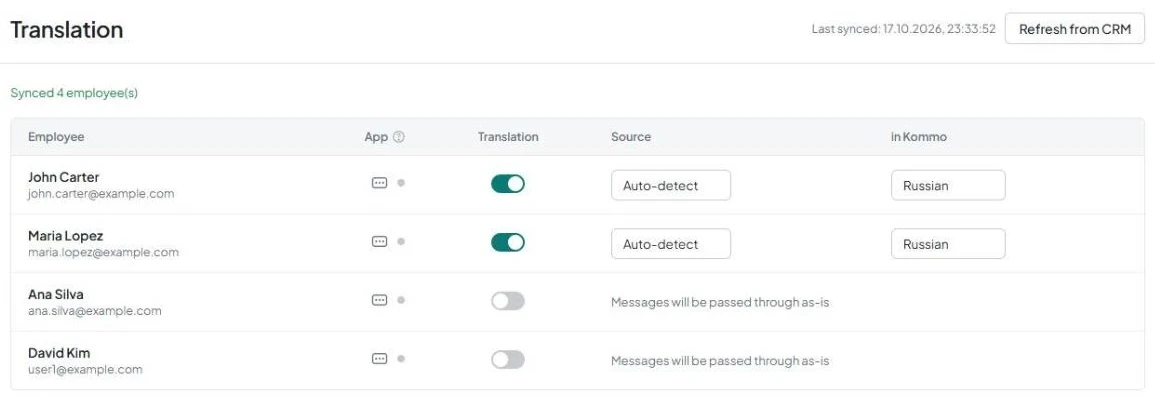
- When the sync is complete, Synced N employee(s) appears.
- For new employees, Translation is enabled, and the in Kommo language matches the account interface language. If no language is set, English is used. Existing employees keep their selected language.
What the table contains
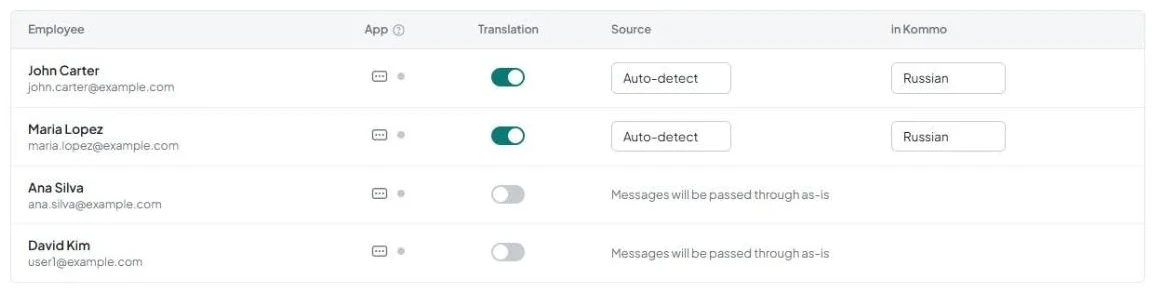
The table shows only active employees. The Employee column contains the name and email.
Credits (out, 30d) is displayed only on plans with translation credits. Learn more about translation credits.
App contains a mobile app PIN and a status dot. Translation is the employee's translation toggle.
Source is a dropdown with these options: Auto-detect, Russian, English, Spanish, Portuguese, German, French, Italian, Indonesian, Turkish.
in Kommo is the language the employee uses to read and write in Kommo. The same language list is available, but without Auto-detect.
Set up translation and the employee's language
Incoming messages are translated into the in Kommo language of the employee responsible for the chat, if that employee has Translation enabled. If the responsible employee is unknown and only one employee has translation enabled, that employee's language is used. If several employees have it enabled, the account language is used. If none do, messages are not translated.
Outgoing messages use the author's settings. If the author's Translation is off, the message is passed through without translation. If it is on, the author's text is treated as written in their in Kommo language. Learn more about how translation works.
3. Choose the in Kommo language
- Enable Translation in the employee's row.
- In the in Kommo field, select the language the employee will use to read and write messages.
- If the employee does not need translation, turn off Translation. The two language fields will be replaced by Messages will be passed through as-is.
Get a mobile app PIN
4. Open the PIN in the App column
- Find the employee and click Mobile PIN in the App column.
- The Mobile Login PIN window opens with the label Expires in 10 minutes.
- The dot next to it indicates the status: gray means Never connected to the app, green means Online, and red means Last seen: <date>.
Get in touch
We reply during business hours.
Already using AnyLinga?
Describe your question and we'll reply on WhatsApp or by email.
New to AnyLinga?
Try it yourself, or we'll set it up for you when you pay for the first month.