
How to show which messenger a customer came from in Kommo with AnyLinga
To see which messenger a customer came from, enable contact and lead tags in AnyLinga. For Telegram and Instagram, you can also add a profile link field to the contact.
Below, learn how to set up tags, a customer source field, and a language tag in Kommo, along with the limitations of each.
What you'll need
- A connected Kommo account: connection instructions.
- Access to the Automation menu in AnyLinga.
- A plan with the settings you need: Source field on contact and Tag on lead are marked PRO on plans where they are unavailable. Tag on contact works on any plan. View plans.
Where to enable tags and source fields
1. Open the settings and enable the toggles you need
- In the Automation menu, open the Automations tab.
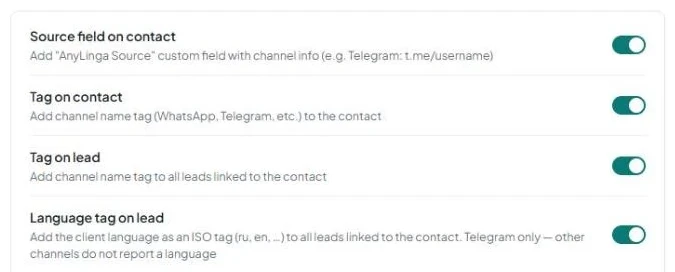
- Enable Source field on contact to add a link to the customer's profile.
- Enable Tag on contact to show the channel on the contact card.
- Enable Tag on lead to show the channel on the lead card.
- Enable Language tag on lead if you need the customer's language code from Telegram.
Which tags appear on contacts and leads
The tag name depends on the channel: WhatsApp via QR code — “WhatsApp,” WhatsApp Business API — “WA Business,” Telegram bot — “Telegram,” Facebook — “Facebook,” Instagram — “Instagram.” Personal Telegram uses the “Personal Telegram” tag.
A second tag, “AnyLinga,” is always added along with the channel tag. This applies to both contacts and leads when the corresponding toggle is enabled.
2. Check the tags on Kommo cards
- With Tag on contact enabled, look for the channel tag and “AnyLinga” on the contact card.
- With Tag on lead enabled, look for them on the contact's newest open lead.
How the source field on a contact works
The Source field on contact setting adds a field of type “Link” named Telegram or Instagram. AnyLinga creates it on first use. If you delete the field in Kommo, it will be created again.
The field value is a link in the format https://t.me/<username> or https://instagram.com/<username>.
3. Check the link on the contact
- Open the card for a contact who came from Telegram or Instagram.
- Find the Telegram or Instagram field with a link to the customer's public profile.
How the language tag is added
The language tag is the ISO language code sent by Telegram, such as “ru,” “en,” or “es.” Other channels do not send a language code, so no language tag is added for them.
4. Check the language tag on the lead
- Make sure Language tag on lead is enabled.
- Open the newest open lead for a contact from Telegram and look for a tag with the language code.
When tags and source fields are added
Tags and source fields are added once per chat, when a contact is created in Kommo from that chat. This happens after the lead creation rules are applied, so the lead already exists at that point.
If tags and source fields were not added at this stage, AnyLinga adds them when the chat receives its first incoming message.
5. Account for when the contact and lead are created
- When checking your settings, look at when the contact is created from the chat, or at the first incoming message if tags and source fields did not appear during creation.
- To understand how a lead is selected, see the lead creation rules.
Get in touch
We reply during business hours.
Already using AnyLinga?
Describe your question and we'll reply on WhatsApp or by email.
New to AnyLinga?
Try it yourself, or we'll set it up for you when you pay for the first month.