
How to connect Kommo to AnyLinga
To connect Kommo, open the Channels page in AnyLinga and turn on the Kommo toggle in the CRM block. Then authorize access in Kommo and return to AnyLinga.
The Kommo messenger integration sends chats from WhatsApp, Telegram, and other connected channels to customer cards. The WhatsApp integration with CRM works through your connected Kommo account. You do not need to enter keys or tokens in AnyLinga.
What you'll need
- Access to your AnyLinga account and the Channels page.
- Access to your Kommo account to authorize the connection.
- If another CRM is connected, disconnect it first. Only one CRM can be connected at a time.
Connect Kommo
1. Turn on the Kommo toggle
- Open the Channels page. The first block is CRM, with the hint Where do messages go?.
- Turn on the toggle in the Kommo row. Your browser will open the Kommo authorization page at www.kommo.com/oauth.
2. Authorize access in Kommo
- Sign in to Kommo and authorize access.
- After you authorize access, the Connected! page opens in English. It shows the CRM account ID and the bare subdomain, without the domain.
3. Wait to return to AnyLinga
- After 3 seconds, the page automatically redirects you to your AnyLinga account.
- Check the Kommo row in the CRM block: the toggle is on, and ID: N and a link to <subdomain>.kommo.com appear below the name.
- If the yellow Click "Save" in widget settings button appears instead of the address, follow the next step. The button opens <subdomain>.kommo.com/settings/widgets/.

Save the widget settings
The AnyLinga widget works in Kommo settings, lead/contact/customer cards, and the Broadcasts left-menu item.
4. Click "Save" in widget settings
- If the widget is not yet activated, click the yellow Click "Save" in widget settings button in the Kommo row. It opens <subdomain>.kommo.com/settings/widgets/.
- Your Kommo account's widget settings will open. Open the AnyLinga widget and click Save.
- After you save, the warning in AnyLinga disappears.
What is available after connecting
AnyLinga registers chat channels in Kommo. These channels are for messengers already connected on the Channels page.
After connecting, incoming messages received while the CRM was disconnected are sent to Kommo if they are no more than 14 days old.
The Lead Routing, Automations, and Calls tabs become available in the Automation section. Learn more: lead routing and tags and the source field.
The employee table becomes available under Automation → Translation, and the Refresh from CRM button becomes active. Learn more: employees.
On the Channels page, connect WhatsApp, WhatsApp Business API, Instagram, Facebook or Telegram; MAX is not available for Kommo accounts.
If you have not connected any messengers yet, continue setup using these instructions: WhatsApp via QR code, Telegram, Instagram and Facebook.
Disconnect Kommo
5. Turn off the Kommo toggle
- Open the Channels page and find the Kommo row in the CRM block.
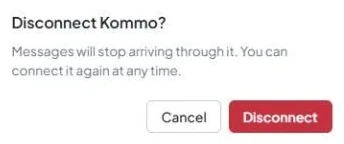
- Turn off the toggle. The Disconnect Kommo? dialog opens with the text: "Messages will stop arriving through it. You can connect it again at any time."
6. Confirm disconnection
- Click Disconnect to disconnect the account. To keep the connection, click Cancel.
- After disconnecting, the chat channels in Kommo are deleted, and the account is no longer linked to AnyLinga.
Get in touch
We reply during business hours.
Already using AnyLinga?
Describe your question and we'll reply on WhatsApp or by email.
New to AnyLinga?
Try it yourself, or we'll set it up for you when you pay for the first month.