
How to set up messenger lead routing in Kommo with AnyLinga
How do you route messenger inquiries in Kommo to the right pipeline and user? In AnyLinga, you choose when to create a deal, which stage to use, and whom to assign as the responsible user.
You can set up automatic lead routing for all sources or separately for each one. Below are the rules for creating deals and assigning leads to users.
What you'll need
- A connected Kommo account: connection instructions.
- Connected channels for which you will set up rules.
- Active users to assign as responsible users. The list comes from Translation: user setup.
When to create a new deal
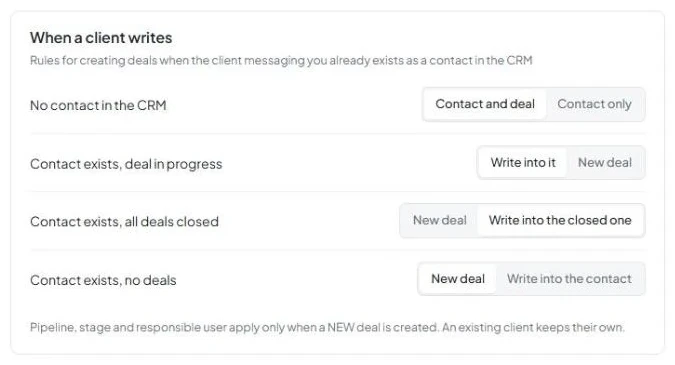
The When a client writes card has four scenarios. The first option is selected by default in each one.
No contact in the CRM: Contact and deal or Contact only.
Contact exists, deal in progress: Write into it or New deal.
Contact exists, all deals closed: New deal or Write into the closed one.
Contact exists, no deals: New deal or Write into the contact.
1. Open the lead routing rules
- In AnyLinga, go to Automation.
- The first tab, Lead Routing, opens.
2. Choose an action for each scenario
- Find the When a client writes card.
- Select one of the two options for each of the four scenarios.
One pipeline for all sources
When Kommo creates a contact from a chat, AnyLinga accepts the incoming lead from Unsorted into the selected pipeline and stage with the specified responsible user. The responsible user is also assigned to the contact.
If the lead cannot be accepted, AnyLinga moves the contact's newest open deal.
3. Select the global mode
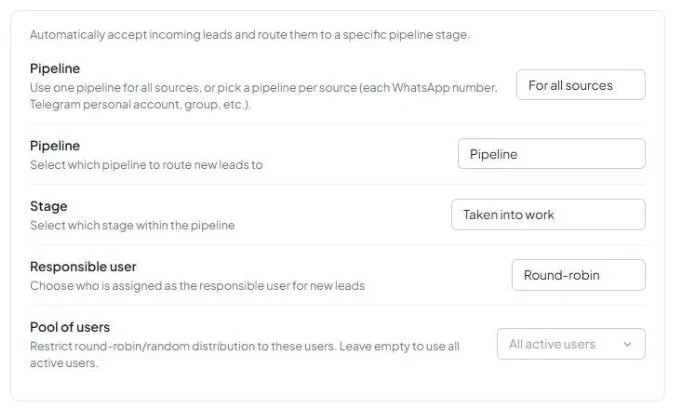
- Find the Automatically accept incoming leads and route them to a specific pipeline stage. card.
- In the Pipeline setting, keep For all sources, which is selected by default.
4. Choose a pipeline and stage
- In the Pipeline field, select a Kommo pipeline.
- In the Status field, select a stage. Stages use the names from your Kommo account and appear in the same order as in the selected Kommo pipeline.
- Then configure the Responsible user field.
Assigning leads to users
The Responsible user field determines who is assigned to new leads. To route leads in Kommo, you can choose one user, round-robin assignment, random assignment, or separate rules for each channel.
5. Choose how to assign the responsible user
- No assignment — do not assign leads.
- In the Global for all channels group, select Specific user to assign one user. Active users are available in the Select user... list.
- Select Round-robin or Random to distribute leads among users.
6. Limit the pool of users
- For Round-robin or Random mode, set the Pool of users.
- Select the users who should receive leads.
- Leave the pool empty to use All active users.
7. Set assignment methods per channel
- If you need different assignment methods, select Per channel in the Per channel group.
- Configure the method separately in the row for each connected WhatsApp number, personal Telegram account, WABA, Facebook, and Instagram.
- For channels that do not need lead assignment, keep No assignment.
A separate pipeline for each source
If you also need to identify the inquiry source in the CRM, see tags and the source field.
8. Switch to per-source settings
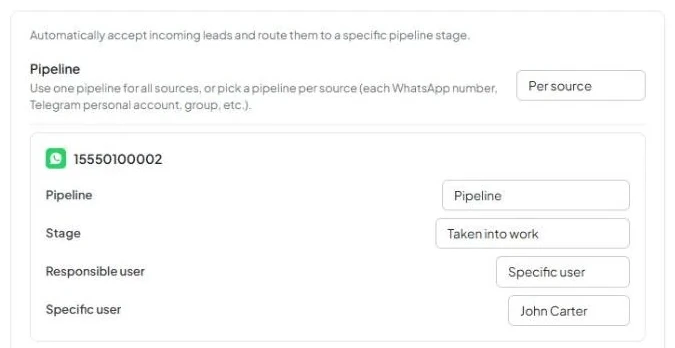
- In the Pipeline setting, select Per source.
- The global pipeline is hidden and cleared. Separate source cards appear instead.
9. Configure each source card
- Set Pipeline and Status on each card.
- If the selected stage is not Unsorted, configure Responsible user.
- Cards are available for WhatsApp numbers, personal Telegram accounts, WABA, Facebook, Instagram, and enabled WhatsApp and Telegram groups.
What the rules do not change
If a contact is found by phone number, it is always reused. There is no setting to create another contact instead.
The chat always appears in Kommo, regardless of the selected contact or deal creation option.
The pipeline, stage, and responsible user settings are not intended to reassign existing clients: they apply when a new deal is created. If the incoming lead cannot be accepted, the fallback described above applies: moving the contact's newest open deal.
Get in touch
We reply during business hours.
Already using AnyLinga?
Describe your question and we'll reply on WhatsApp or by email.
New to AnyLinga?
Try it yourself, or we'll set it up for you when you pay for the first month.