
How to schedule a client message from a Kommo chat in AnyLinga
How do you schedule a WhatsApp message from Kommo? With the AnyLinga widget, you can write a message in a record's chat and choose a date and time to send it.
You can also automatically cancel a scheduled message if the client replies first. Below are the setup steps and limits.
What you'll need
- Connect the AnyLinga widget: connect Kommo.
- Check that your subscription is active and your plan includes scheduled sending: plans.
- Open an existing chat in a lead, contact, or customer record.
- Prepare a text-only message of up to 4096 characters.
How to schedule a message
1. Enter your message and open scheduled sending
- Open a chat in a lead, contact, or customer record.
- Enter your message in the input field.
- On the chat toolbar, click the Schedule message clock icon next to Templates. It is available only in the messenger form.
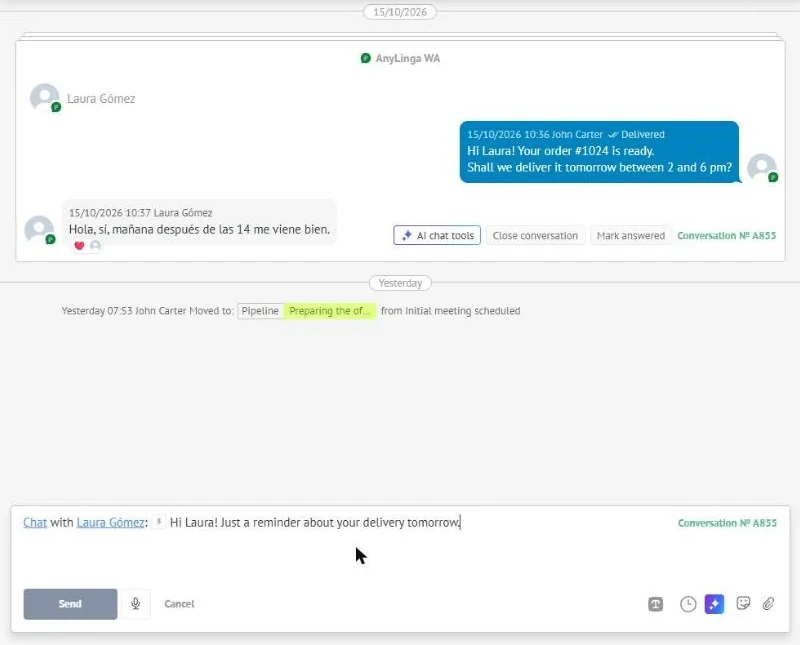
2. Choose a date and time
- The Schedule message window will already contain the text from the input field.
- Set the date and time in the two fields separated by “at”. The default time is 15 minutes from now.
- Leave Cancel if the client replies first checked if a client reply should cancel sending. It is checked by default.
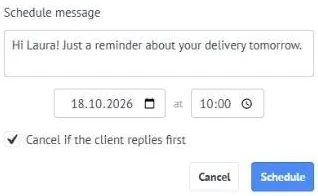
3. Confirm scheduled sending
- Click Schedule. The window will close, and the scheduled messages list will update.
- The text will be cleared from the chat input field if you have not changed it since opening the window.
- To close the window without scheduling, click Cancel.
Limits and feature availability
You can schedule only text, without files, up to 4096 characters. If the text is empty, you will see Type the message text. A chat can have up to 20 messages waiting to be sent. If you exceed this limit, you will see Too many scheduled messages in this chat.
Scheduled sending is available only in an existing chat. If there is no chat yet, the widget will show No chat with this client yet — send the first message manually.
The feature is not available on every plan. If your plan does not include it, you will see Scheduled sending is not available on your plan. Check the terms on the plans page. Messages cannot be scheduled or sent with an expired subscription.
In WhatsApp Business, Facebook, and Instagram, the Schedule message button is hidden if the 24-hour messaging window has closed: no incoming messages have been received from the client for 24 hours.
How to cancel a scheduled message
4. Find the message and cancel sending
- Open the AnyLinga widget panel in a lead, contact, or customer record.
- Find a line such as “⏰ 15:30 text ✕”. Messages scheduled for today show the time as “HH:MM”; other messages use “DD.MM HH:MM”.
- Click ✕ — Cancel sending.
5. Set cancellation on a client reply
- When scheduling, leave Cancel if the client replies first checked.
- If the client replies before the selected time, the message will be canceled automatically.
- Uncheck the box when scheduling if a client reply should not cancel sending.
Record notes and sending results
AnyLinga adds system notes to the record. The client does not receive them. The notes use the language of the AnyLinga account interface.
Notes are added to the lead from which the message was scheduled. If you schedule it from a contact record, notes are added to the contact's open leads. If there are none, notes are added to the contact record.
After scheduling, a note appears: “⏰ Message scheduled for <date> <time>: «<first 120 characters of the text>»”. If a manager cancels it: “⏰ Scheduled message for <date> <time> cancelled”. If the client replies: “⏰ Scheduled message cancelled — the client replied.”.
If the feature is unavailable on your plan at the time of sending, you will see “⏰ Scheduled message not sent — the feature is not available on your current plan.”. If the messaging window has closed: “⏰ Scheduled message not sent — the 24-hour messaging window has closed.”. If an error occurs: “⏰ Scheduled message could not be sent: <reason>”.
No separate note is added after successful sending. The message appears in the Kommo chat as a regular outgoing message from the manager who scheduled it.
All checks take place at sending time, not scheduling time: plan, subscription, 24-hour window, translation, and Auto-template. Translation and auto-template work the same way as for a regular reply.
If translation fails, the message is sent in the original language. A note appears in the record: “Translation failed — scheduled message sent in the original language.”. For temporary errors, up to 3 sending attempts are made at 2-minute intervals.
Get in touch
We reply during business hours.
Already using AnyLinga?
Describe your question and we'll reply on WhatsApp or by email.
New to AnyLinga?
Try it yourself, or we'll set it up for you when you pay for the first month.