
WhatsApp broadcast limit: how to message more than 256 contacts in AnyLinga
The WhatsApp broadcast limit in the app is 256 contacts per list. To message a larger audience through AnyLinga, use the WhatsApp Business API.
In AnyLinga, you can add up to 10,000 recipients to one broadcast. However, sending depends on your current Meta limit: a new business portfolio starts at 250 unique numbers per rolling 24 hours.
What you'll need
- An AnyLinga Campaigns or Workspace plan, or a 7-day free trial — plans.
- A WhatsApp Business API number, or readiness to connect one.
- A list of recipients who have agreed to receive messages from you.
- A Meta-approved template for messages outside the 24-hour customer service window.
What is the broadcast limit in the WhatsApp app?
According to WhatsApp Help, you can add up to 256 contacts to one broadcast list. There is no limit on the number of lists: you can create multiple lists for a larger audience.
Only recipients who have saved your number in their phone contacts will receive the broadcast. Broadcast lists are not available in WhatsApp for Windows, Mac, or Web.
In some countries, WhatsApp is introducing a monthly limit on broadcast messages. This is a separate restriction described in WhatsApp Help.
How the WhatsApp Business API limit works
The API limit is the number of unique phone numbers a business can deliver messages to outside the 24-hour customer service window in a rolling 24-hour period. It is not a list size limit or a counter that resets at midnight.
According to Meta's documentation, the limit levels are 250 for a new business portfolio, followed by 2,000, 10,000, 100,000, and unlimited. Since October 2025, the limit belongs to the business portfolio and is shared across all its numbers.
The API does not require recipients to save your number. However, they must agree to receive messages from you. Outside the 24-hour window, you can only send Meta-approved templates. Meta charges for template messages — use the cost calculator.
How to send a broadcast to more than 256 contacts
1. Connect a WhatsApp Business API number
- Connect a number using the WABA registration guide.
- Compare your audience size with your current Meta limit level. If the limit is too low, follow the steps in the next section to raise it.
2. Create a template and get it approved
- Prepare your message using the guide on creating a template.
- To send outside the 24-hour window, wait for Meta to approve the template.
3. Upload your list and spread out your broadcasts
- Upload your list using the guide on broadcasting to your own list. A single broadcast can have up to 10,000 recipients.
- If your list exceeds your current Meta limit, split it into multiple broadcasts on different days.
- To schedule a broadcast, use Send time → Schedule.
4. Set the sending speed and start the broadcast
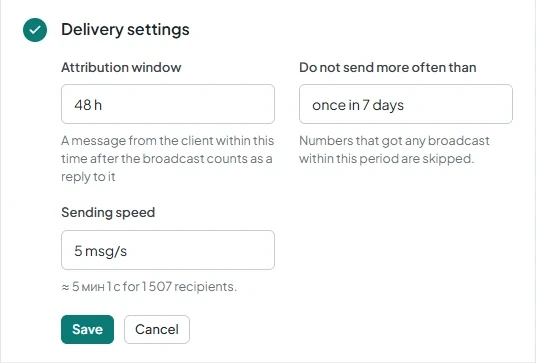
- In Delivery settings, select Sending speed: 1, 2, 5, or 10 messages per second. The default is 5.
- Check the time estimate shown as “≈ {t} for {n} recipients.” and start the broadcast using the guide on broadcasting to your own list.
5. Check the report and the reason for the pause
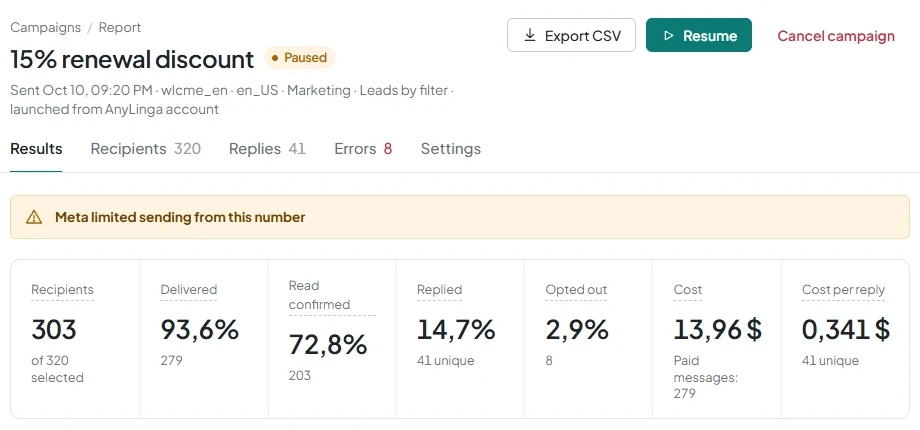
- If Meta limits sending from the number, AnyLinga will pause the broadcast. The report will show the reason Meta limited sending from this number.
- To manage the broadcast, use Suspend, Continue, or Cancel campaign.
How to raise your Meta limit
6. Meet the requirement to raise the initial limit
- Verify your business with Meta.
- Alternatively, deliver 2,000 messages to unique numbers outside the 24-hour window within 30 days, using high-quality templates.
7. Meet the requirements for automatic increases
- Maintain high message quality.
- For the next increase, you must use at least half of your current limit over the last 7 days.
- When the requirements are met, Meta automatically raises the limit by one level within 6 hours. The levels are 2,000, 10,000, 100,000, and unlimited.
Get in touch
We reply during business hours.
Already using AnyLinga?
Describe your question and we'll reply on WhatsApp or by email.
New to AnyLinga?
Try it yourself, or we'll set it up for you when you pay for the first month.