
How to send WhatsApp reminder messages and repeat offers using Kommo data
Want to send a WhatsApp reminder message before a contract renewal or a repeat offer after a purchase? In AnyLinga, you can set this up using Kommo lead and contact data.
An automatic segment collects contacts based on your conditions. When a contact enters the audience, an active campaign sends them an approved WhatsApp template.
What you'll need
- Kommo connected to AnyLinga.
- The Campaigns or Workspace plan, or a 7-day trial: plans.
- A WhatsApp Business API number.
- An approved WhatsApp template: how to create a template.
- The customer's number in the Phone field of the Kommo contact.
How broadcasts using Kommo data work
For repeat sales on WhatsApp, use a condition based on time since purchase. For renewal reminders or birthday greetings, use a condition based on a date field in a lead or contact.
AnyLinga reads leads and contacts from Kommo and keeps the data up to date through Kommo webhooks, which it sets up automatically. Time-based conditions are checked every hour.
First, create an automatic segment. Then launch a campaign for it with sending set to When a contact enters the audience. Below are two segment options: after a purchase and before a date.
Repeat offer after a purchase
1. Create an automatic segment
- Open Broadcasts → Audiences → Create audience.
- In the Type field, select Automatic segment.
- Under Start from a recipe, select Haven’t bought in a while.
- Click Create and set up conditions.
2. Set the time since purchase
- Check the Deal in pipeline condition: the recipe selects the first pipeline, with at stage set to Closed - won.
- For an offer after six months, set {{d}} after purchase to 180 days.
- To choose a different interval, enter a number in the Passed N days after purchase condition. The default value for this field is 90.
Reminder before a date
3. Choose a reminder recipe
- Create an Automatic segment through Broadcasts → Audiences → Create audience.
- Under Start from a recipe, select Renewal soon.
- Click Create and set up conditions.
4. Choose a date field and interval
- In the Until the date in field condition, select a lead or contact field.
- In the left N days section, enter the interval. The default is 30 days.
- For a renewal reminder, select the contract end date. For a birthday greeting, select the birthday.
Refine your audience using Kommo data
5. Add CRM conditions
- In the CRM group, use Pipeline and stage: Deal in pipeline … at stage. An empty stage means any stage in the selected pipeline.
- Add Responsible user or Tags. The Has tag condition checks lead tags: any of the selected tags is enough.
- To filter by budget, use Deal amount with the more than or less than operator and a number.
- To filter by a field, use Field value: Field … equals or contains text. Contact fields are marked Contact.
6. Set up exclusions and re-entry
- If needed, add In / not in an audience or conditions under Exclude.
- Leave Do not include those who opted out of marketing broadcasts enabled. It is enabled by default.
- Under Re-entry, select Always to let contacts return each time they meet the conditions again.
- Select Once to prevent re-entry, or Do not send more often than to limit it to once every N days.
7. Review and save the rules
- Under Apply changes, select To existing contacts, which is the default, or Only to future events.
- Check the Preview section with the value Will be added: {{n}}.
- Click Save rules.
Start sending when contacts enter the audience
8. Create a campaign for the segment
- On the segment card, click Create broadcast.
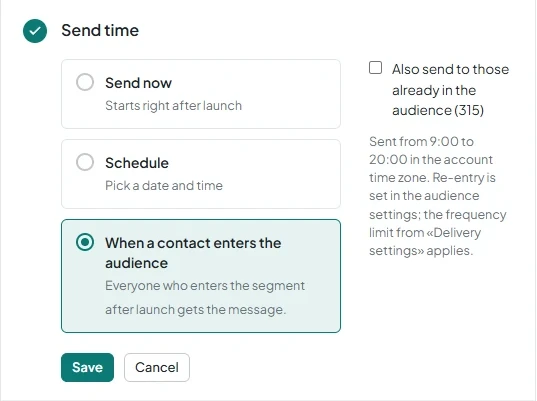
- Under Send time, select When a contact enters the audience.
- To send a message to current members as well, enable Also send to those already in the audience ({{n}}).
9. Prepare the message template
- Select an approved WhatsApp template for a reminder or repeat offer.
- You can use Contact name, Lead name, and Lead budget for template variables.
- Consider the template category: reminders and confirmations may fall under Utility, while offers fall under Marketing.
10. Launch the campaign
- Click Launch. The campaign will send the template to contacts entering the audience.
- To stop the campaign, click Cancel campaign.
Get in touch
We reply during business hours.
Already using AnyLinga?
Describe your question and we'll reply on WhatsApp or by email.
New to AnyLinga?
Try it yourself, or we'll set it up for you when you pay for the first month.