
WhatsApp broadcast messages to your contacts with AnyLinga
A WhatsApp broadcast message in AnyLinga is a message sent to contacts from your file. Upload phone numbers, choose a template, and start sending. Customer replies arrive in Kommo chats.
AnyLinga sends broadcasts only through the official WhatsApp Business API (WABA). Sending requires a template approved by Meta.
What you'll need
- A Campaigns or Workspace plan — see plans. You can also use the 7-day trial with all features. On the Integration plan, this section displays “Broadcasts are available on the Campaigns and Workspace plans.” and a Choose a plan button.
- A connected WhatsApp Business API number. Without one, the wizard will tell you that broadcasts are available only through the official API.
- A Meta-approved template from the same WhatsApp Business account as the sender number. Instructions for creating one are below.
- A file with phone numbers of recipients who have agreed to receive WhatsApp messages from you.
Prepare your file
1. Prepare a file with phone numbers
- Save your contact list as CSV or .txt. Use a comma, semicolon, or tab as the delimiter.
- Add a column with phone numbers in international format. A name column is optional.
- Write numbers in international format with the country code. AnyLinga does not add or correct the country code.
Import your contacts into an audience
2. Create an audience
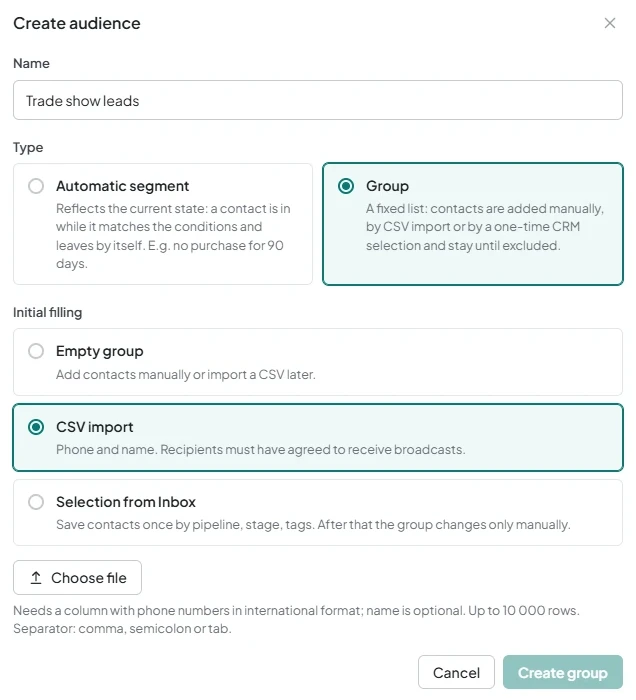
- Open Broadcasts → Audiences → Create audience.
- Fill in Name. In Type, select Group.
- Under Initial filling, select CSV import. The hint reads: “Phone and name. Recipients must have agreed to receive broadcasts.”
3. Upload the file and check the columns
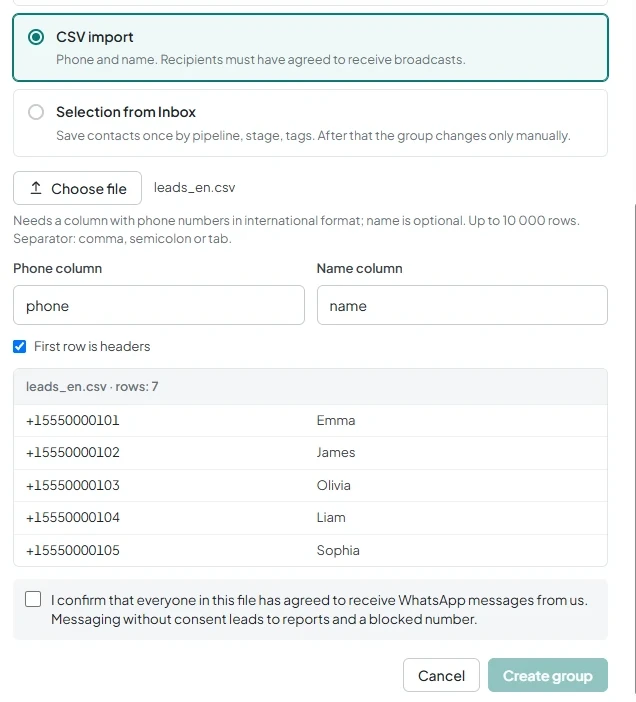
- Click Choose file. AnyLinga detects the columns automatically.
- Check Phone column and Name column. If there are no names, select No name.
- Check the First row is headers checkbox and the preview of the first five rows.
- Select the required checkbox: I confirm that everyone in this file has agreed to receive WhatsApp messages from us. Messaging without consent leads to reports and a blocked number.
- Click Create group. Duplicate and invalid numbers are skipped automatically.
4. Check the audience
- In the audience card, compare Contacts and Available for broadcasts. The second count excludes recipients who opted out and numbers whose last delivery failed.
- To add more contacts, click Add contacts and select Phone numbers or CSV import.
- After adding contacts, check Added: {{n}}, Already in the audience: {{n}}, and Skipped (invalid or repeated numbers): {{n}}.
Prepare a WhatsApp template
5. Create a message template
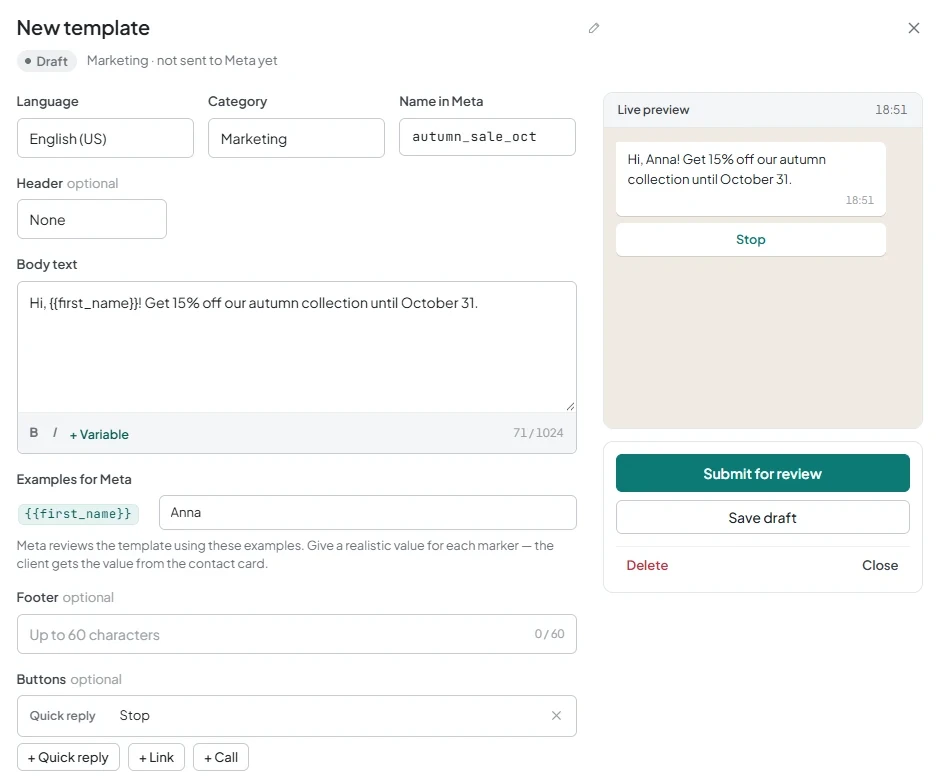
- Open Templates → New template → WhatsApp Business template. The hint reads: “Start chats and send broadcasts. Meta reviews it first.”
- Under What is this template for?, select Marketing for offers, promotions, and announcements, or Utility for order statuses, reminders, and confirmations.
- Fill in Name in Meta using lowercase letters, numbers, and underscores. Set Category and Language. Prepare the Header, Body text, Footer, and Buttons sections.
- Use Variable to add the variables you need, such as {{first_name}} for the contact's name. Under Examples for Meta, provide an example for each variable.
- Add a Quick reply button with text such as “Stop”. This will be the opt-out button.
6. Submit the template for review
- Click Submit for review, then check the result using Refresh status.
- Wait for the Approved status. Until then, the template will be Pending. If it is Rejected, check Rejection reason.
- For the broadcast, use only an approved template from the same WhatsApp Business account as the sender number.
Set up and launch a broadcast
7. Create a campaign
- Open Campaigns → Create broadcast. The same button is available in the audience card.
- In the New broadcast wizard, complete the Campaign section: Campaign name, Sender number, and Approved template.
- Click Save. The wizard sections open in sequence. Save each section before moving to the next.
8. Check recipients
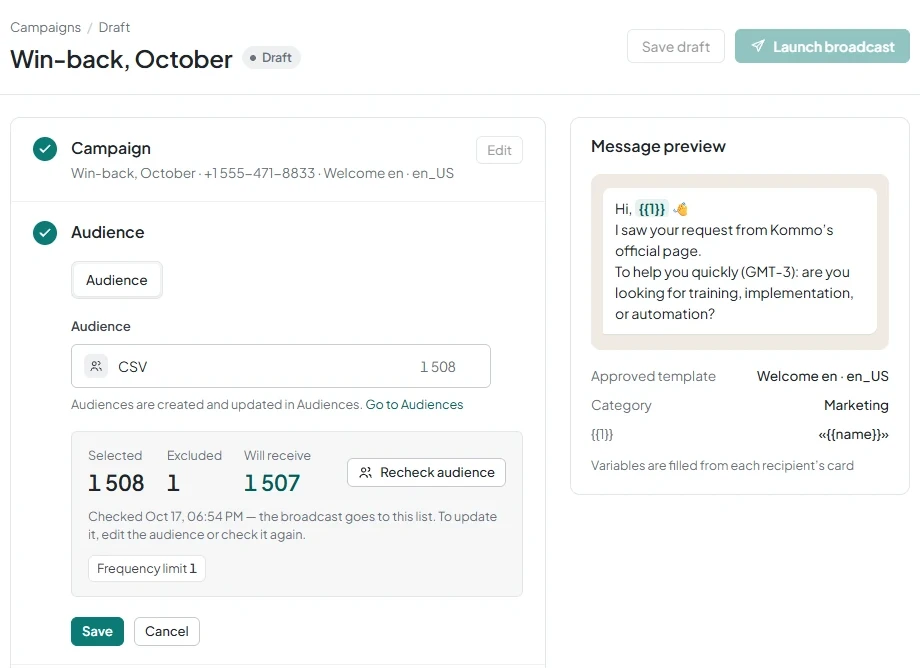
- In the Audience section, select Audience mode and your group.
- Be sure to click Check audience.
- Check Selected, Excluded, and Will receive.
- Review the exclusion reasons: Duplicate phone, Opted out, Frequency limit, No phone, and Invalid phone. Click Save.
9. Set up the message and send time
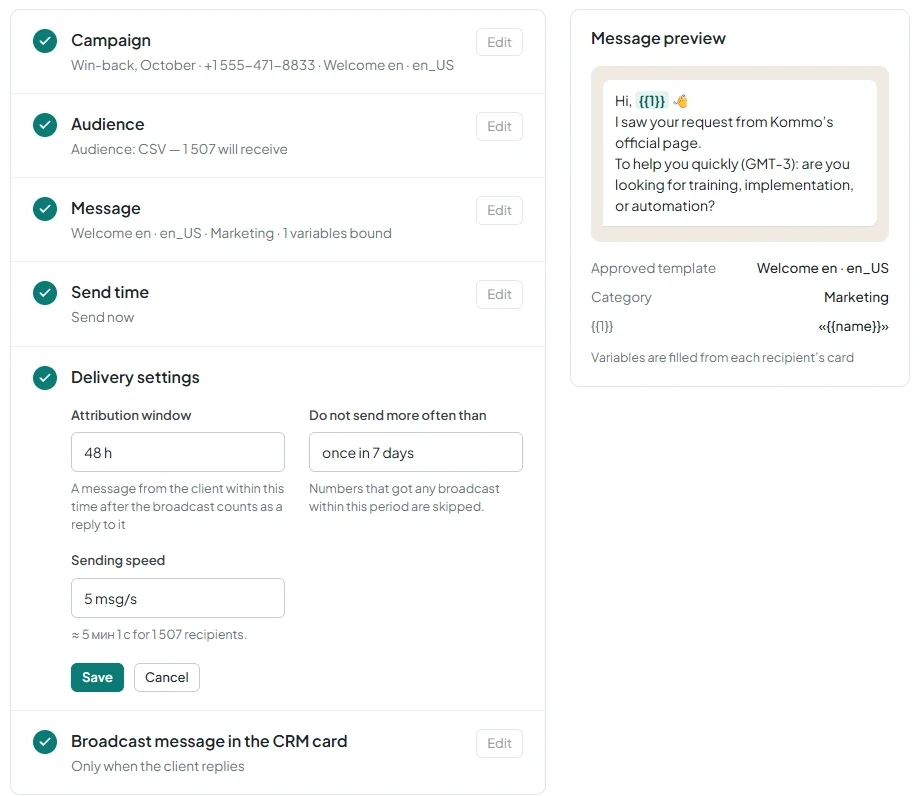
- In the Message section, configure Template variables. For contacts imported from CSV, use Contact name, Contact first name, or Fixed text. Deal fields are empty for CSV contacts.
- In Opt-out button, select the quick reply button you prepared, such as “Stop”. Click Save.
- In the Send time section, select Send now or Schedule.
- For scheduled sending, set the date and time in your browser's time zone. Click Save.
10. Configure delivery settings
- In Delivery settings, check Do not send more often than. The default is 7 days: numbers that received any broadcast during this period will be skipped.
- Select Sending speed: 1, 2, 5, or 10 messages per second. The default is 5. An estimated sending time is shown next to it.
- Check Attribution window. The default is 48 hours: replies during this period count as replies to the broadcast.
- Under Broadcast message in the CRM card, keep Only when the client replies or select Immediately after sending.
- Click Save.
11. Launch or schedule the broadcast
- Click Launch broadcast or Schedule broadcast.
- Confirm in the dialog: “Send the template to {n} recipients? Meta charges for marketing messages.”
What the customer sees
The customer receives a WhatsApp message from your business number with the template text and buttons.
The customer's reply arrives in a Kommo chat as a regular incoming message. Clicking the opt-out button adds the number to the stop list.
Check results and manage the broadcast
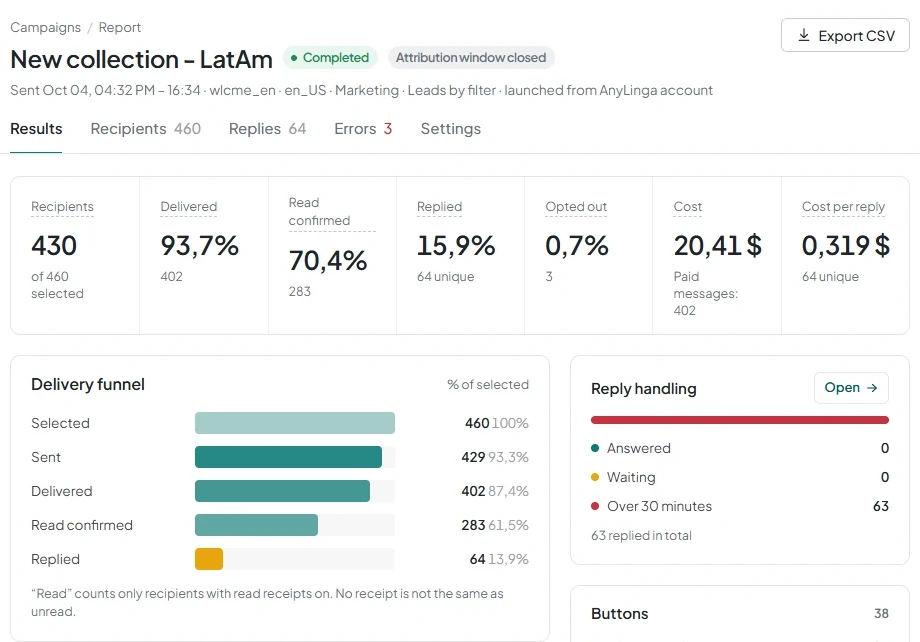
After launch, open the campaign report. It includes the Results, Recipients, Replies, Error rate, and Settings tabs.
12. Check results and export the report
- On the Results tab, check Recipients, Delivered, Read confirmed, Replied, and Opted out.
- Review Cost, an estimate based on Meta's price list, and Cost per reply.
- Click Export CSV to get statuses, errors, replies, and opt-outs for each recipient.
13. Manage sending and the stop list
- Use Suspend, Continue, or Cancel campaign as needed.
- If sending is suspended automatically, check the reason in the report.
- To add or remove numbers manually, open Settings → Broadcasts tab → Stop list.
Get in touch
We reply during business hours.
Already using AnyLinga?
Describe your question and we'll reply on WhatsApp or by email.
New to AnyLinga?
Try it yourself, or we'll set it up for you when you pay for the first month.