
WhatsApp message template: How to create one for the Business API in AnyLinga
To send the first message to a customer or start a broadcast in AnyLinga, you need a WhatsApp message template approved by Meta.
In AnyLinga, you can create a template, add variables and a quick reply button, submit it for review, and then select it for a broadcast.
What you'll need
- A connected WhatsApp Business API number.
- The message text and its purpose: a utility notification or marketing.
- An example value for each variable if you plan to use variables.
Why you need WhatsApp Business API templates
Broadcasts and first messages to customers in AnyLinga are sent through the official WhatsApp Business API only using a template approved by Meta. This is also called a WhatsApp message template.
WhatsApp Business API templates belong to the WhatsApp Business account connected to the number. You cannot use templates from another account with this number.
Meta charges separately for template messages. The cost depends on the category and country: check it using the message pricing calculator.
Create a message template
1. Open the templates page
- Go to Broadcasts → Templates.
- On the Message templates page, click New template.
2. Choose the template type and purpose
- At the Select template type step, select WhatsApp Business template for first messages and broadcasts that require prior Meta review.
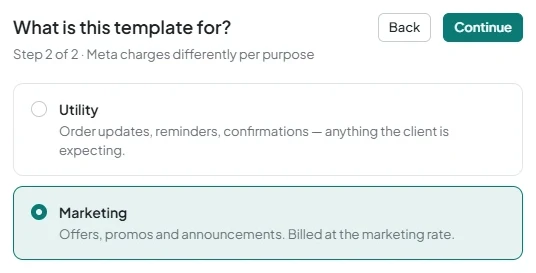
- At the What is this template for? step, select Utility for an order status, reminder, or confirmation.
- For offers, promotions, and announcements, select Marketing. These messages are charged at the marketing rate.
3. Fill in the main fields
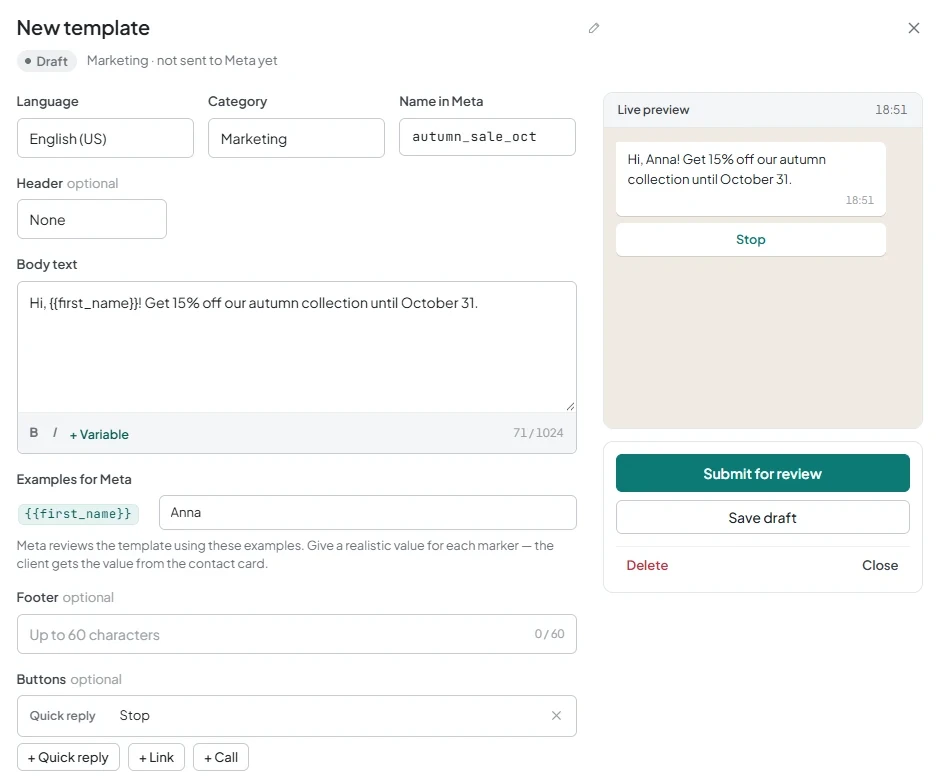
- Enter the Name in Meta: use only lowercase letters, numbers, and underscores.
- Check the Category field and select the Language.
- Fill in the Body text. Add a Header and Footer if needed.
4. Add variables and a quick reply
- Click Variable to insert a variable, such as {{name}}, {{first_name}}, {{phone}}, or {{lead.name}}.
- Under Examples for Meta, enter an example value for each variable.
- In the Buttons section, select the Quick reply type. For example, add a button labeled “Stop” so you can later select it as the unsubscribe button in the broadcast.
Submit the template for Meta review
5. Submit the template for review
- Check the text, variables, and example values.
- Click Submit for review.
- To check the result, click Refresh status.
6. Check the template status
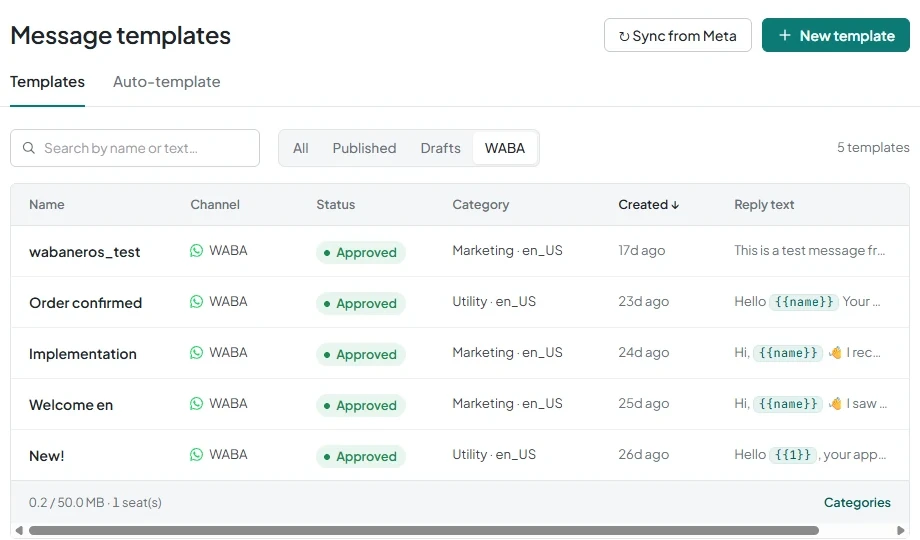
- Check the status: Draft, Pending, Approved, or Rejected.
- If the template is rejected, check the Rejection reason.
- If the template was created elsewhere for the same WhatsApp Business account, click Sync from Meta to load the templates and their statuses into the list.
Use an approved template in a broadcast
7. Select a template and configure variables
- In the broadcast wizard, select a template in the Approved template field. Only templates with the Approved status are available here.
- For each {{N}} variable, specify a source: Contact name, Contact first name, Lead name, Lead budget, or Fixed text.
- If you added a “Stop” quick reply, select it as the unsubscribe button in the broadcast.
8. Continue setting up the broadcast
- Follow the instructions in How to send a WhatsApp broadcast to your own contact list in AnyLinga.
Get in touch
We reply during business hours.
Already using AnyLinga?
Describe your question and we'll reply on WhatsApp or by email.
New to AnyLinga?
Try it yourself, or we'll set it up for you when you pay for the first month.