
How to connect WhatsApp Business API to Kommo in AnyLinga
To connect WhatsApp Business API to Kommo, add a number in AnyLinga through the Meta window. Below are the steps to connect a new number, move a number from another provider, and confirm a number.
WhatsApp Business API (WABA) is Meta’s official API. WhatsApp campaigns in AnyLinga use only this API and are available on the Campaigns and Workspace plans. See the pricing page for details.
What you'll need
- An AnyLinga account.
- A connected Kommo account: connection guide.
- A Facebook account with access to your business in Meta.
- For a new connection, prepare a number that is not used in the regular WhatsApp app. If you need help registering, read the WABA registration guide.
Connect a new number through Meta
1. Open the WhatsApp Business API connection settings
- Go to Channels → Direct.
- Find WhatsApp Business API, the first row in the list, and turn on the toggle.
2. Choose to connect a new number
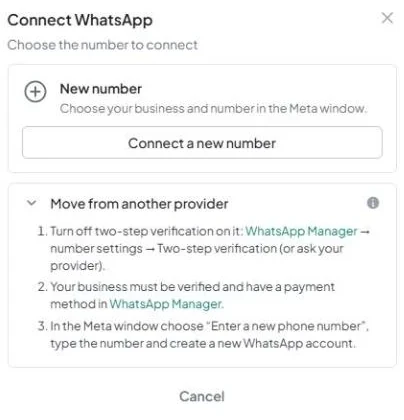
- In the Connect WhatsApp window, find the New number section under Choose the number to connect.
- Click Connect a new number.
3. Complete the connection in the Meta window
- Select a business and number in the Meta window and complete the steps shown.
- Check that the number and its label appear under WhatsApp Business API and that the toggle is on.
4. Check access if the connection fails
- If you see “No phone number was found in the selected WhatsApp account. Add a number in the Meta window and try again.”, add a number in the Meta window and connect again.
- If you see “No WhatsApp Business account was shared with AnyLinga. Connect again and select an account in the Meta window.”, connect again and select an account.
- In other cases, you will see “Failed to connect WhatsApp Business” or an error message from Meta.
Move a number from another provider
Use this option if the number is already connected to another provider or has the Ineligible status in the Meta window.
5. Open the migration requirements
- In the Connect WhatsApp window, expand Move from another provider.
- Turn off two-step verification for the number in WhatsApp Manager.
- Make sure the business is verified and a payment method has been added in WhatsApp Manager.
6. Connect the number you are moving in the Meta window
- Click Connect a new number to open the Meta window.
- In the Meta window, select Enter a new phone number and complete the connection.
- If the number has the Needs confirmation status, confirm it using the instructions below.
Confirm a number
If Meta has not registered the number, the Needs confirmation status will appear next to it. The next steps depend on the message in the confirmation panel.
7. Request and enter a confirmation code
- If you see “Meta asks to confirm this number before it can send messages”, click Code by SMS or Code by call.
- Enter the code you received in the Code field and click Confirm.
8. Enter a PIN or retry activation
- If you see “This number has a two-step verification PIN set by its previous provider”, fill in the 6-digit PIN field.
- If you see “Meta did not activate this number”, click Try again.
Add multiple numbers and choose a default
9. Add another number
- Click Add number and follow the same connection process through Meta.
- AnyLinga will detect all numbers in all WABA accounts you have granted access to, including a new number in the same WABA account.
10. Choose the default number
- When there are two or more numbers, they appear in a tree view. The default number has the Default status.
- Click Make default next to another number to set it as the default.
11. Disconnect WhatsApp Business API if needed
- Turn off the WhatsApp Business API toggle.
- In the Disconnect WhatsApp Business API? window, click Disconnect.
The 24-hour window, templates, and pricing
The 24-hour window starts with the customer’s last incoming message. After it ends, you can send only an approved template. If you try to send a regular message, you will see an error: “More than 24 hours have passed since the customer’s last message — you can only send a template now.”
For the first message and campaigns, open the Templates menu and select the WhatsApp Business template type. Meta reviews the template first. Use Sync from Meta to sync templates. An approved template cannot be edited, only deleted. See the WhatsApp message templates guide for details.
Connection cost: one WABA number uses one channel and costs $21 per month. The trial lasts 7 days and lets you connect up to 5 channels. Paid Meta messages are billed separately. See Plans and billing for terms.
Get in touch
We reply during business hours.
Already using AnyLinga?
Describe your question and we'll reply on WhatsApp or by email.
New to AnyLinga?
Try it yourself, or we'll set it up for you when you pay for the first month.