
How to connect WhatsApp to Kommo via QR code in AnyLinga
To connect WhatsApp to Kommo through AnyLinga, enable the channel and scan the QR code using WhatsApp on your phone. Below are the steps for connecting, assigning numbers to employees, and setting up groups.
Set up this WhatsApp CRM integration in the AnyLinga channels section. See lead routing for details on where chats appear in Kommo and who gets the lead.
What you'll need
- An AnyLinga account — sign up.
- A connected Kommo account — connect Kommo.
- A phone with WhatsApp or WhatsApp Business.
Connect WhatsApp via QR code
1. Enable WhatsApp in channels
- Open Channels → the Direct tab.
- Turn on the toggle in the WhatsApp row.
- Wait for the QR code. First, you will see Generating QR code, this may take 1–2 minutes....
2. Scan the QR code with your phone
- Open WhatsApp on your phone.
- Tap ⁝ or Settings → Linked devices → Link a device.
- Point your phone at the screen to scan the code.
- After scanning, the phone number will appear below the name. The toggle will stay on.
- If someone else has the phone, click Copy link to QR-code and send the link to the owner. They need to open it on another screen and scan the code with their phone.
Multiple numbers and employee assignments
3. Add another number
- Click Add number in the WhatsApp row.
- Scan the new QR code using WhatsApp on the phone with the number you want to connect.
- When there are two or more numbers, they appear in a tree. The first connected number becomes the default number.
4. Assign a number to employees
- Click the number to open the Number assignment window.
- Select For all — Default number for all employees.
- To assign the number to specific employees, select Personal assignment and choose the employees.
- Click Save.
WhatsApp groups
5. Open groups and enable translation
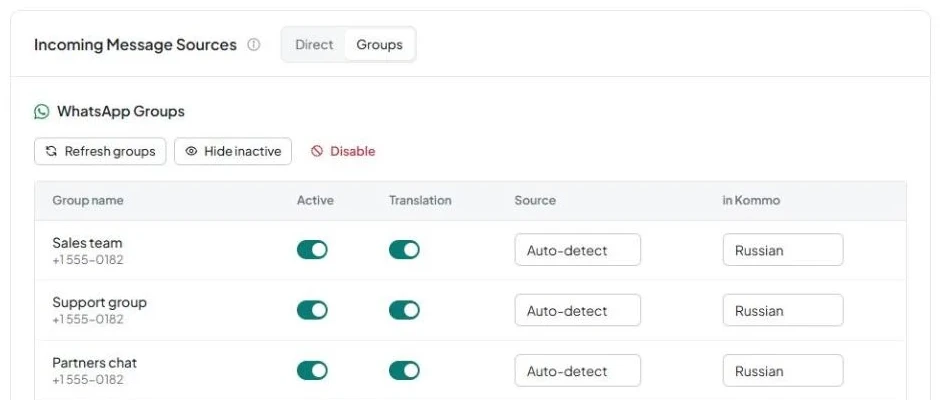
- Go to the Groups tab and find the WhatsApp Groups section. It is visible only when WhatsApp is connected via QR code.
- Turn on Enable group message translation. Messages from allowed groups will be translated and sent to your CRM or AnyLinga Inbox.
- Click Refresh groups to update the list. The table has these columns: Group name, Active, Translation, Source, in Kommo.
- Use Hide inactive or Show inactive to change how the list is displayed. The section also has a Disconnect button.
- If the list is empty, you will see No groups found. Make sure your WhatsApp is connected and you are a member of at least one group.
Disconnect and reconnect
6. Disconnect WhatsApp
- Turn off the toggle in the WhatsApp row.
- The Disconnect WhatsApp? window will display a warning: “Messages will stop arriving through it. You can connect it again at any time.”
- Confirm by clicking Disconnect.
7. Check disconnection notifications
- When the connection is lost, the number is marked as disconnected and disappears from the list.
- If the connection is not restored within 2 minutes, the owner will receive a notification by email or in Telegram. Another notification will arrive when the connection is restored.
- Check the settings: Settings → Notifications → Integrations category → CRM disconnections and channel issues.
- View the event history in Monitoring: Disconnecting..., QR scan required, Reconnecting….
8. Reconnect the number
- Turn on the WhatsApp toggle again or click Add number.
- Scan the new QR code with the phone that has the number you want to connect.
Where to check the Risk Index
Open Monitoring → the Risk Index tab. It appears when WhatsApp numbers are connected. The index is based on message volume over 24 hours: high volume increases the risk of WhatsApp restrictions or a ban.
Levels range from No risk to Critical. In the red zone, you will see this recommendation: High risk of ban. Consider pausing outbound or switching to WABA.
See Risk Index for details. For campaigns, use the WhatsApp Business API.
Get in touch
We reply during business hours.
Already using AnyLinga?
Describe your question and we'll reply on WhatsApp or by email.
New to AnyLinga?
Try it yourself, or we'll set it up for you when you pay for the first month.