
How to enable the AI agent only for selected leads
Set conditions in the Trigger filters section of the AnyLinga AI gateway. Only messages from customers with an open lead that matches at least one condition will be sent to n8n.
AnyLinga sends messages to your AI through n8n. If the gateway is not connected yet, start with how to connect an AI agent through n8n.
Set up trigger filters
1. Open the AI gateway filters
- Go to Tools & Settings → AI gateway.
- On the Connect your AI page, find the Trigger filters section.
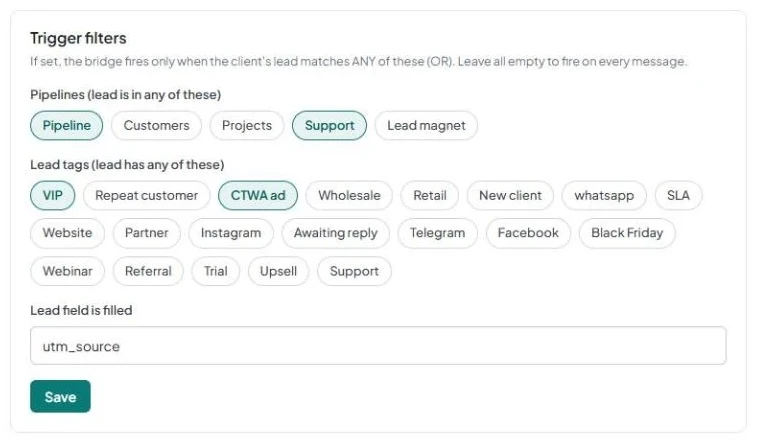
2. Set conditions and save
- Under Pipelines (lead is in any of these), select the pipelines you need, such as “Inbound inquiries”.
- Under Lead tags (lead has any of these), select tags, such as “AI”, if you want to filter leads by tag.
- Use Lead field is filled if the condition should be a filled field.
- Click Save.
How conditions are checked
Conditions use “or” logic: matching any one condition is enough. If you specify both a pipeline and a tag, the lead does not have to match both conditions at once.
Only the contact’s open leads are checked. One matching lead is enough. If the lead cannot be read or the customer does not have a contact yet, the message is not sent to n8n.
To send the AI messages only for leads with the “AI” tag, set only the condition for that tag. When a manager removes the tag, the AI stops receiving that customer’s messages in about a minute. Changes to tags, the field, or the pipeline take effect within a minute.
Related questions
AI and a manager in the same chat · why the reply does not reach the customer
Get in touch
We reply during business hours.
New to AnyLinga?
Try it yourself, or we'll set it up for you when you pay for the first month.