
How to disconnect Zoho CRM from AnyLinga
In your AnyLinga account, open Channels, find the Zoho CRM row in the CRM block, and turn off the toggle. Confirm the disconnection. AnyLinga Inbox will disconnect along with Zoho CRM.
What you'll need
- Access to your AnyLinga account.
- The Channels section with the CRM block.
- The toggle in the Zoho CRM row turned on.
Disconnect Zoho CRM
1. Turn off the Zoho CRM toggle
- In your AnyLinga account, open Channels.
- In the CRM block, find the Zoho CRM row.
- Turn off the toggle.
2. Confirm the disconnection
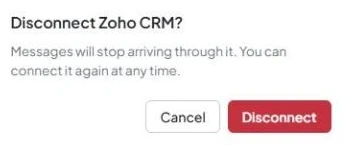
- The Disconnect Zoho CRM? dialog will display this message: “Messages will stop arriving through it. You can connect it again at any time.”
- Click Disconnect to confirm, or Cancel to keep the connection enabled.
AnyLinga Inbox disconnects along with Zoho CRM.
How to reconnect Zoho CRM
Turn on the same toggle in the Zoho CRM row, just as you did when first connecting. For detailed instructions, see Connect Zoho CRM.
Client messages received while Zoho CRM was disconnected will appear in AnyLinga Inbox and the Zoho record when you reconnect. If there is already an open task for the conversation, the message will not create a new message task.
Related questions
AnyLinga settings for Zoho · Zoho API limit
Did you find this article helpful?
Get in touch
We reply during business hours.
New to AnyLinga?
Try it yourself, or we'll set it up for you when you pay for the first month.