
Which AnyLinga settings work with Zoho CRM
With Zoho CRM, the Automation section of your AnyLinga account has three tabs: Conversation Routing, Automations, and Calls. Here you can configure user assignment, voice message handling, tasks for new messages, and responses to WhatsApp calls. Translation settings are separate, in the Translation section.
What you'll need
- Open the AnyLinga account you use with Zoho CRM.
- Conversation routing requires active users with access to the channel.
- WhatsApp call settings require a number connected via QR code.
How to set up conversation routing
1. Select a responsible user and a pool of users
- In your AnyLinga account, open Automation → Conversation Routing.
- In the Responsible user field, choose who is assigned to new conversations. The screenshot shows Random selected.
- Use the Pool of users field to limit routing to specific users. If the field is empty, All active users are used.
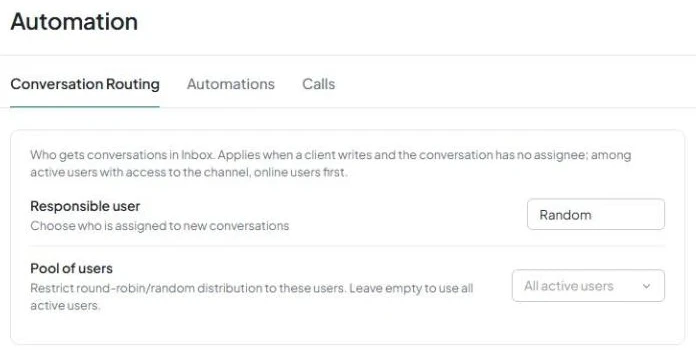
Routing runs when a client sends a message and the conversation in Inbox is unassigned. It considers active users with access to the channel, prioritizing those who are online.
How to set up voice messages and tasks
2. Configure voice message handling
- Open the Automations tab.
- Enable Voice transcription to receive incoming voice messages as text with translation in Inbox.
- Enable Manager voice messages as text to transcribe the manager's voice messages and send them to the client as translated text.
- For If transcription fails or credits run out, select Send as audio or Don't send.
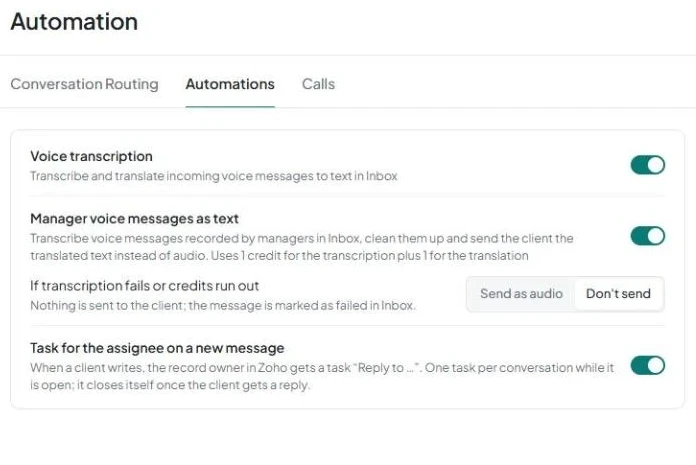
A manager's voice message uses 1 credit for transcription and 1 credit for translation.
3. Enable tasks for new messages
- On the same tab, enable Task for the assignee on a new message.
- For details, see Task for a new message.
How to set up responses to WhatsApp calls
4. Choose a call notification mode
- Open the Calls tab.
- For WhatsApp calls, select Off or Notify.
- In Notify mode, a call entry appears in the client's conversation in Inbox.
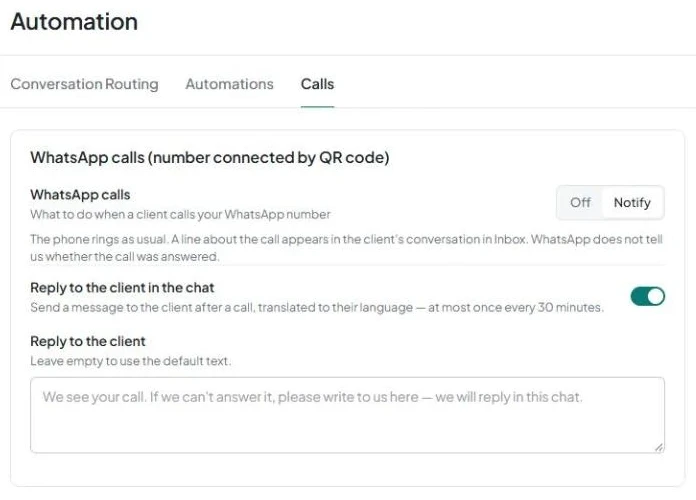
This setting is available for a WhatsApp number connected via QR code.
5. Set up a message to the client after a call
- Enable Reply to the client in the chat to send the client a message after a call, translated into their language.
- Enter your text in the Reply to the client field. If you leave it empty, the default text is used.
The message after a call is sent no more than once every 30 minutes.
Which settings are unavailable with Zoho CRM
With Zoho CRM, there is no source field, channel tags, or pipelines with deal creation rules. These settings are available only for Kommo and amoCRM.
Translation is configured in the Translation section, just as it is for other CRMs.
Related questions
Task for a new message · Voice transcription · How translation works
Did you find this article helpful?
Get in touch
We reply during business hours.
New to AnyLinga?
Try it yourself, or we'll set it up for you when you pay for the first month.