
How to install the AnyLinga extension in Zoho CRM
First, connect Zoho CRM on the Channels page in your AnyLinga account. Then open the installation link as a Zoho CRM administrator and confirm the extension installation.
What you'll need
- Access to your AnyLinga account and the Channels page.
- A Zoho CRM administrator account.
- Zoho CRM connected to AnyLinga.
Install the extension
1. Connect Zoho CRM to AnyLinga
- Open the Channels page in your AnyLinga account.
- If Zoho CRM is not connected yet, follow the instructions to connect Zoho CRM.
2. Install the extension using the link
- Sign in to Zoho CRM as an administrator.
- Open the installation link.
- Confirm the installation.
3. Check the tabs in the Zoho CRM left menu
- Find the AnyLinga Inbox and AnyLinga Broadcasts tabs in the left menu.
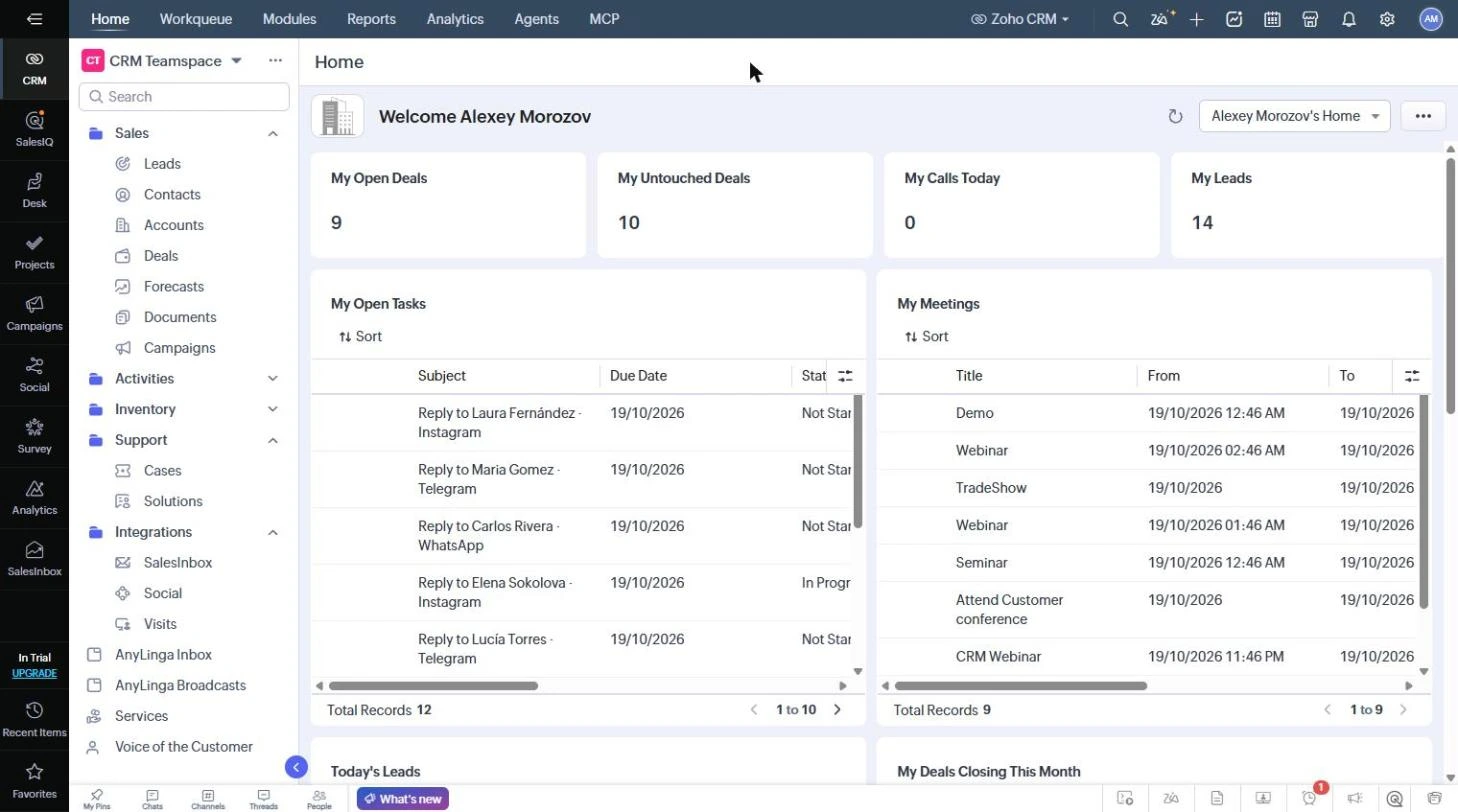
What will appear in Zoho CRM
The AnyLinga Inbox tab contains customer conversations. Sign in with your Zoho login, without a password. The AnyLinga Broadcasts tab contains WhatsApp broadcasts.
Lead, contact, and deal records will have a Send message button at the top and an AnyLinga block in the record's Related List for conversations with the customer. Task records will also have an AnyLinga block and a Send message button.
The Contacts, Leads, and Deals lists will have a Create broadcast audience bulk action button.
How to update the extension
When a new version is released, reinstall the extension using the current installation link.
Related questions
Where to view customer messages · Message a customer first
Get in touch
We reply during business hours.
New to AnyLinga?
Try it yourself, or we'll set it up for you when you pay for the first month.