
How to add Clients awaiting reply to Zoho Workqueue
To add "Clients awaiting reply", open Workqueue in Zoho and create a queue based on the Waiting for reply · AnyLinga view. You only need to add the queue manually once.
What you'll need
- Choose a module: Leads or Contacts.
- Use the Waiting for reply · AnyLinga view.
- Choose whose records to show: Only Me, All User, or Selected User.
Create a queue
1. Start creating a queue
- Open the Workqueue tab at the top of Zoho.
- Click + next to the My Workqueue heading.
The gear next to it opens queue management, where you can only enable or reorder existing queues. Your custom views are not available there. Use "+" instead.
2. Fill out the "Create New Queue" window
- In Select module, choose Leads.
- In Based On, keep Custom View, which is selected by default.
- In Custom View, select Waiting for reply · AnyLinga.
- In View Name, enter "Clients awaiting reply".
- In Show records owned by, select Only Me to see your own clients, or All User if you are a manager. Selected User is also available.
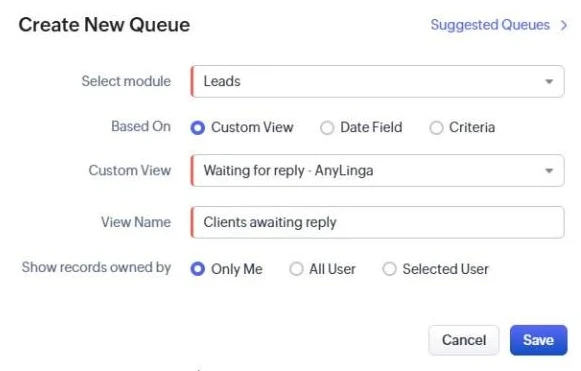
"Only Me" is selected by default. "Based On" also offers "Date Field" and "Criteria", but this queue requires "Custom View".
3. Save the queue
- Click Save.
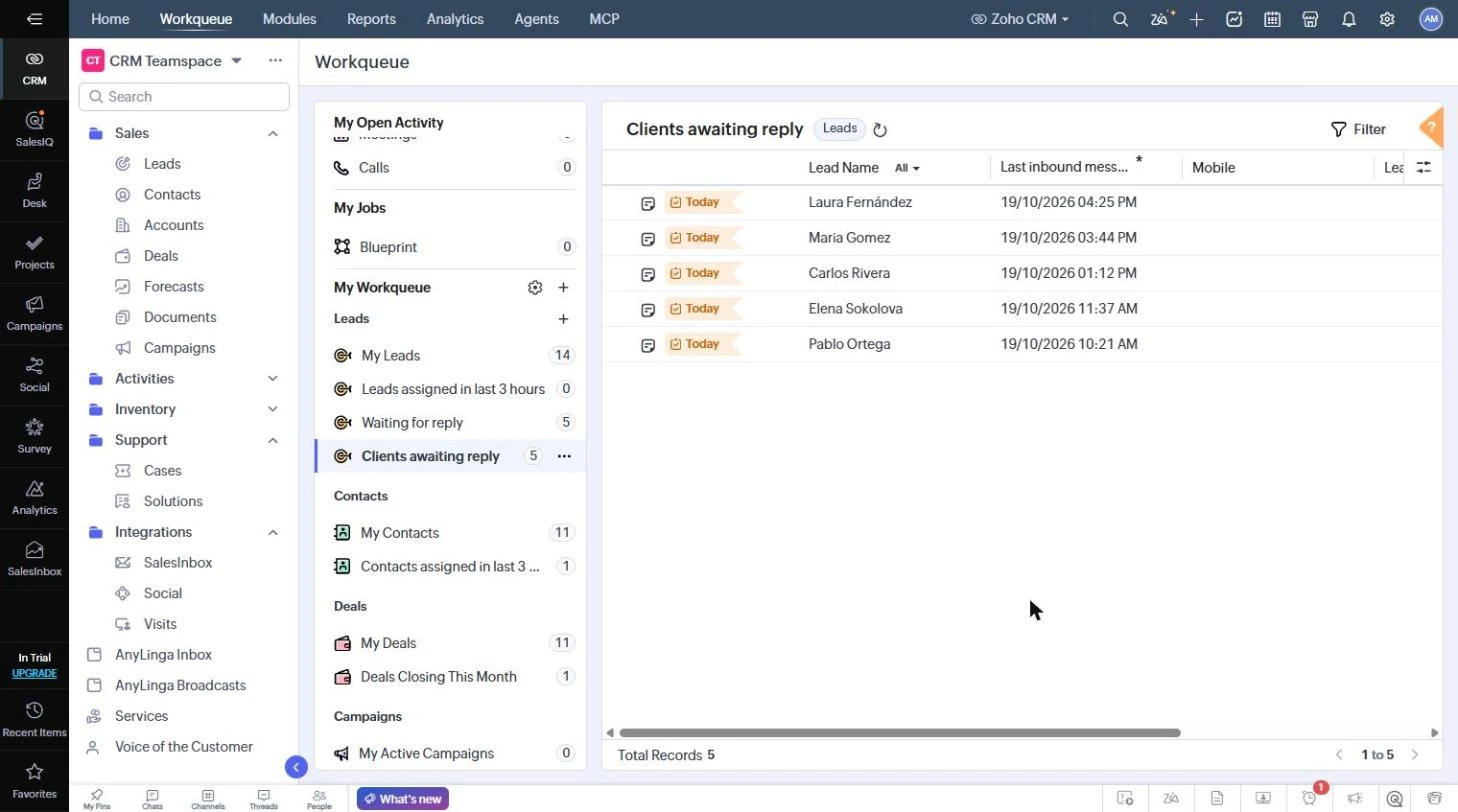
- In Workqueue, find "Clients awaiting reply" under My Workqueue → Leads.
Use the queue
The queue shows the number of clients and a table with the Last inbound message field. With Only Me selected, a sales rep sees their own clients. For a manager, use All User.
To add the same queue for Contacts, repeat the setup and choose Contacts in Select module.
Related questions
Which clients need a reply · Task for a new message · Reply to a client from Zoho
Did you find this article helpful?
Get in touch
We reply during business hours.
New to AnyLinga?
Try it yourself, or we'll set it up for you when you pay for the first month.