
How to get a task and reminder for a new client message
In AnyLinga, enable Task for the assignee on a new message. When a client sends a message, the record owner in Zoho CRM gets a task. One minute after the task is created, Zoho shows a pop-up reminder.
Zoho bell notifications for new messages work only if the record has an email address. Tasks work without an email address.
What you'll need
- Access to the AnyLinga dashboard.
- A connected Zoho CRM account.
- Zoho CRM access for the record owner.
How to enable tasks for new messages
1. Open the automation settings
- In the AnyLinga dashboard, go to Automation.
- Open the Automations tab.
2. Enable tasks for the assignee
- Enable Task for the assignee on a new message.
- Incoming client messages will now create tasks for the record owner in Zoho.
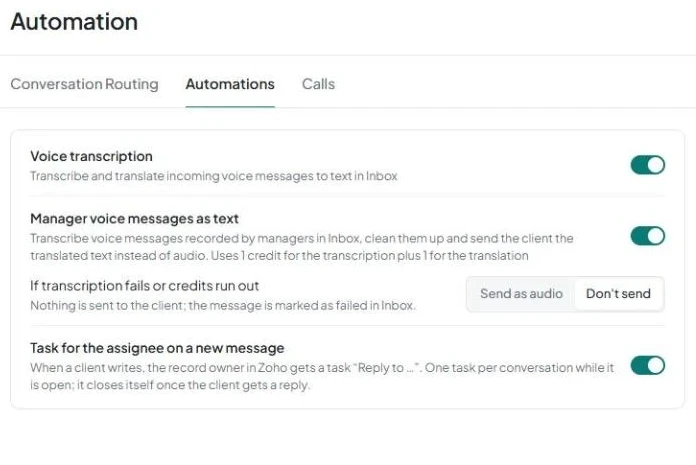
This toggle is available only when Zoho is connected. It is off by default.
How to get a reminder and reply to the client
3. Find the task after a client sends a message
- After an incoming message, open My Open Tasks on Zoho's home page.
- Find the task “Reply to <name> · <channel>”. It is assigned to the owner of the client's record and linked to that record.
- The task is due today and has high priority. It also appears in the record card as the next action.
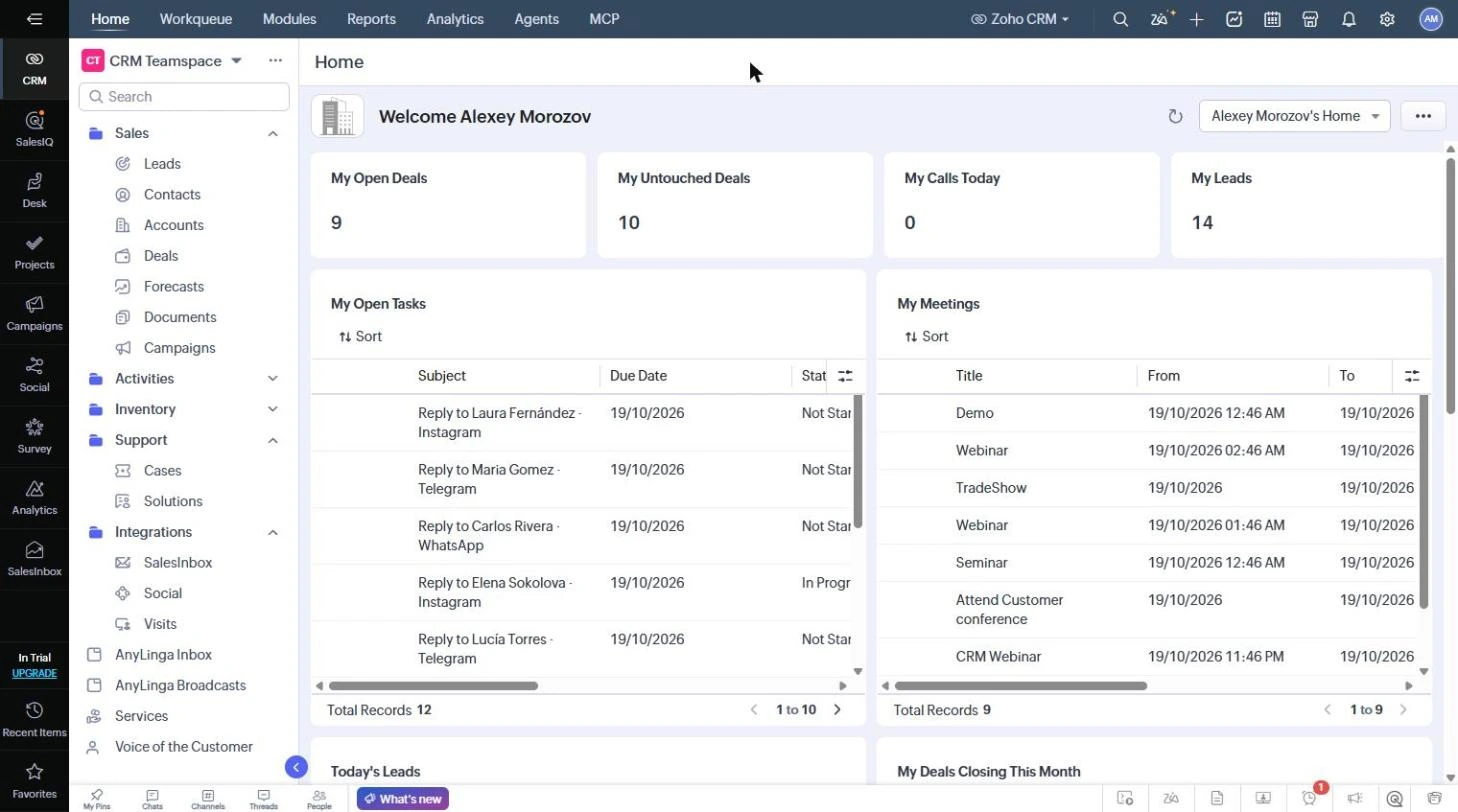
The task subject uses the language of the AnyLinga dashboard. In the English dashboard, the subject starts with “Reply to …”.
4. Check the pop-up reminder
- One minute after the task is created, Zoho shows a reminder in a pop-up window over Zoho.
This reminder does not appear in the notification bell. While the task for the conversation is open, new client messages do not create another task.
5. Reply to the client from the task
- Open the task card and find the AnyLinga block with the client's conversation.
- Click Send message to reply directly from the task.
- After you reply, the task closes automatically with the status Completed and disappears from My Open Tasks.
Related questions
Which clients need a reply, the “Clients awaiting reply” queue in “Workqueue”, AnyLinga settings for Zoho.
Did you find this article helpful?
Get in touch
We reply during business hours.
New to AnyLinga?
Try it yourself, or we'll set it up for you when you pay for the first month.