
How to send a WhatsApp broadcast from Zoho CRM
To send a WhatsApp broadcast from Zoho CRM, open AnyLinga Broadcasts in the left menu and click Create broadcast under Campaigns. No separate login is needed. Broadcasts are sent from a WhatsApp Business API number using templates approved by Meta.
What you'll need
- A WhatsApp Business API number for sending messages.
- A message template approved by Meta.
- A plan that includes broadcasts: Campaigns or Workspace.
Open broadcasts in Zoho CRM
1. Open AnyLinga Broadcasts
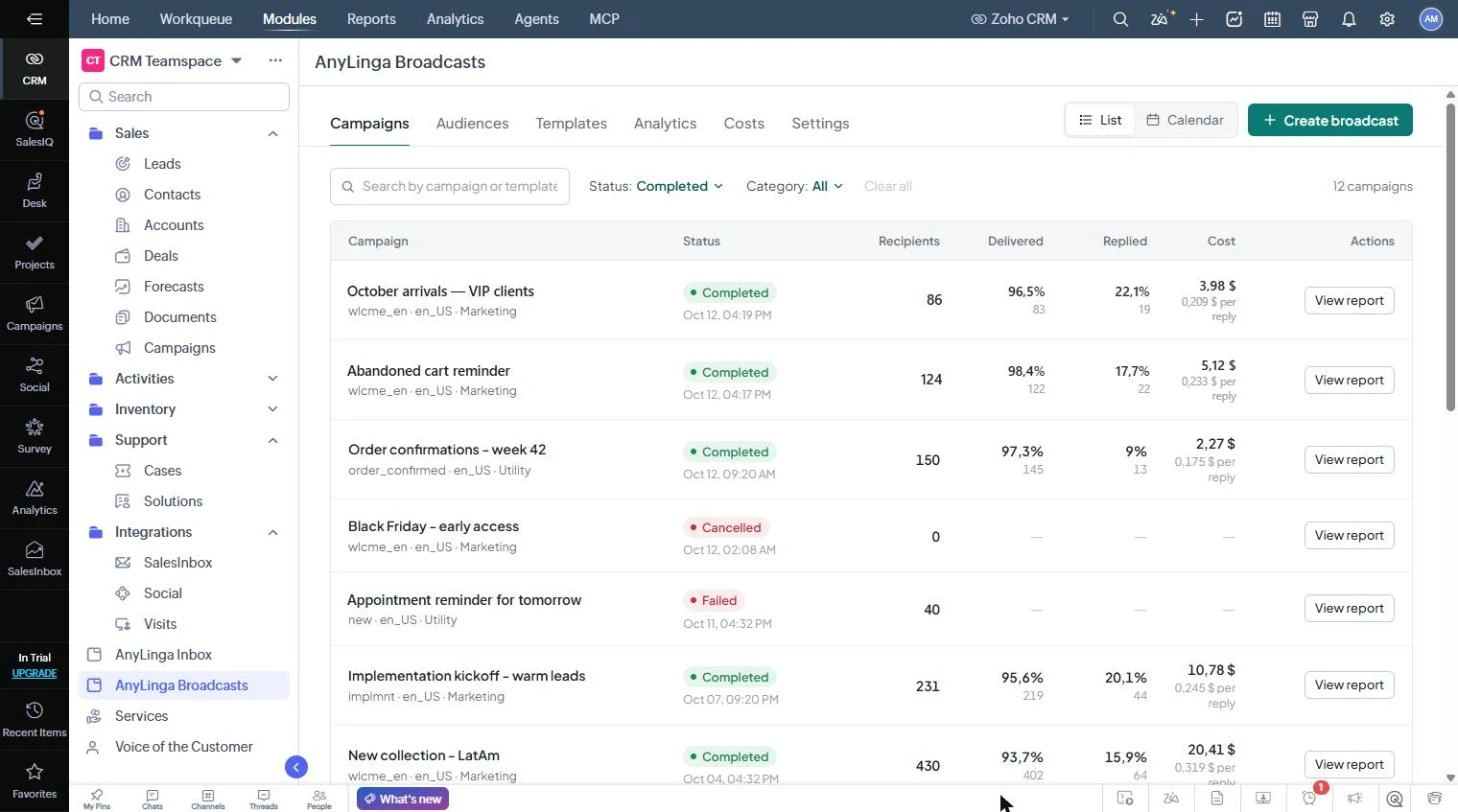
- In the left menu in Zoho, click AnyLinga Broadcasts.
- Open Campaigns. This section contains your broadcasts, with List and Calendar views available.
- The Audiences, Templates, Analytics, Costs, and Settings sections are also available here, just as in your AnyLinga account.
2. Start creating a broadcast
- Under Campaigns, click Create broadcast.
- Next, set the audience, template, sending time, and sending speed, then launch the broadcast using the instructions below.
Set up and launch your broadcast
You can build an audience from selected Zoho records or automatically from Zoho data. Choose the method that works for you: audience from Zoho records or automatic audience from Zoho data.
Then follow the general instructions: set up and launch a broadcast and WhatsApp message templates. Selecting the audience, template, sending time, and sending speed, and launching the broadcast work the same way as for other CRMs.
After launch, under Campaigns, you can view the status, recipients, delivery and reply rates, and cost, and open the Report. Customer replies arrive in AnyLinga Inbox within Zoho as regular messages.
Related questions
Broadcast results · Opt-in and opt-out · Plans and billing
Get in touch
We reply during business hours.
New to AnyLinga?
Try it yourself, or we'll set it up for you when you pay for the first month.