
How to reply to a client directly from Zoho CRM
Open a conversation in the AnyLinga Inbox tab or the AnyLinga block in a Zoho CRM record. Write a reply, select translation into the client's language if needed, and click Send.
What you'll need
- A client conversation in the AnyLinga Inbox tab or the AnyLinga block in a record.
- Your reply to the client.
- Reply mode selected, not Note.
Send a reply to the client
1. Open the conversation
- Select a conversation in the AnyLinga Inbox tab or open the AnyLinga block in a Zoho record.
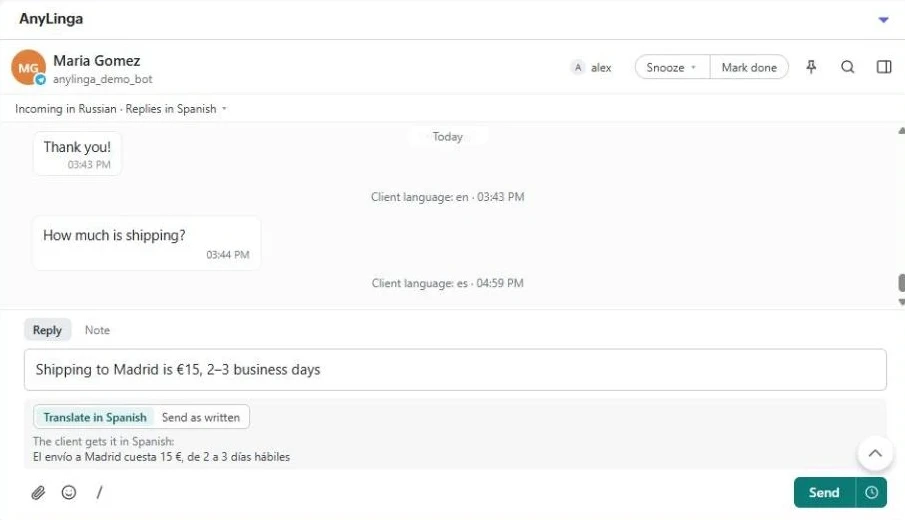
- Above the conversation, check the language line, for example: “Incoming messages in Russian · Replies in English”.
2. Write a reply
- At the bottom of the conversation, select Reply mode.
- Enter your text in the reply field.
The Note mode next to it is for internal team notes, not replies to the client.
3. Review the text for the client
- If the client uses a different language, select Translate into <client's language> below the field. In this example, select Translate into English.
- If no translation is needed, select Send as written.
- Review the text below the field. It shows what the client will receive, for example: “The client will receive this in English: …”.
4. Send the message
- Click Send.
- Replying to the client clears the Waiting for reply flag on the record. If the new-message task is enabled, it will close.
How reply translation works
Translation in Zoho CRM works the same way as in other CRMs. For details, see how translation works.
Related questions
where to see client messages · which clients need a reply · new-message task
Did you find this article helpful?
Get in touch
We reply during business hours.
New to AnyLinga?
Try it yourself, or we'll set it up for you when you pay for the first month.