
Where to view broadcast results if you work in Zoho
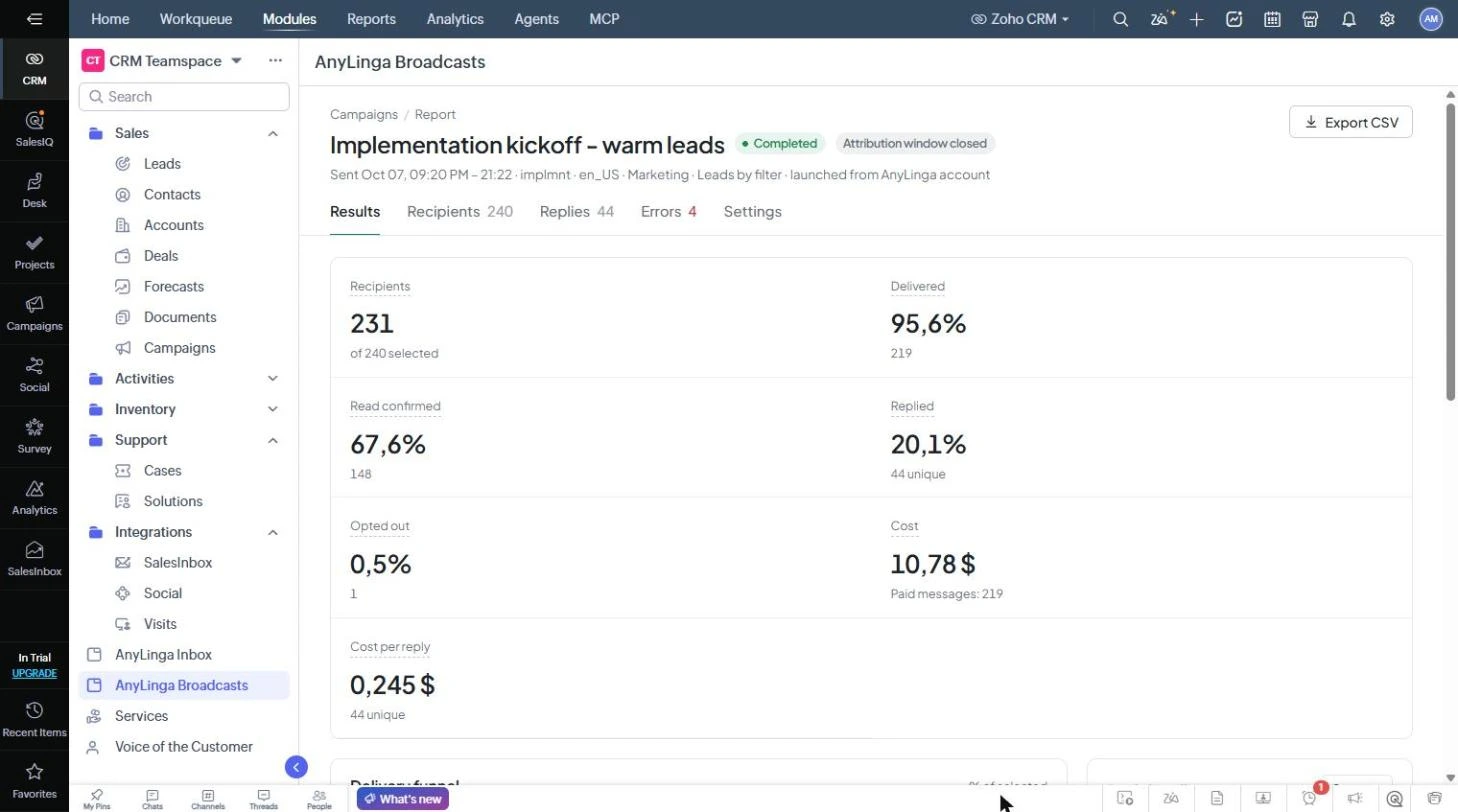
View broadcast results in the AnyLinga Broadcasts tab in Zoho CRM: open Campaigns and click Report for the broadcast you want to check. The same reports are available in your AnyLinga account.
What you'll need
- Zoho CRM or an AnyLinga account.
- The AnyLinga Broadcasts tab if you are viewing the report in Zoho CRM.
- A broadcast whose results you want to check.
How to open and review a report
For more about the metrics, see checking broadcast results.
1. Open the broadcast report
- In Zoho CRM, go to the AnyLinga Broadcasts tab.
- Open Campaigns and click Report for the broadcast you want to check.
Broadcasts are not listed in Zoho's Analytics section. View them in the AnyLinga Broadcasts tab.
2. Check the metrics
- On the Results tab, check Recipients, Delivered, Read confirmed, Replied, and Opted out.
- Check Cost and Cost per reply.
- For details, open the Recipients, Replies, Errors, or Settings tabs.
3. Export results if needed
- In the report, click Export CSV.
- In your AnyLinga account, you can also open the Analytics and Costs sections.
Related questions
WhatsApp broadcasts from Zoho · An audience from Zoho records
Did you find this article helpful?
Get in touch
We reply during business hours.
New to AnyLinga?
Try it yourself, or we'll set it up for you when you pay for the first month.