
Where to find client messages from WhatsApp, Telegram, and Instagram in Zoho CRM
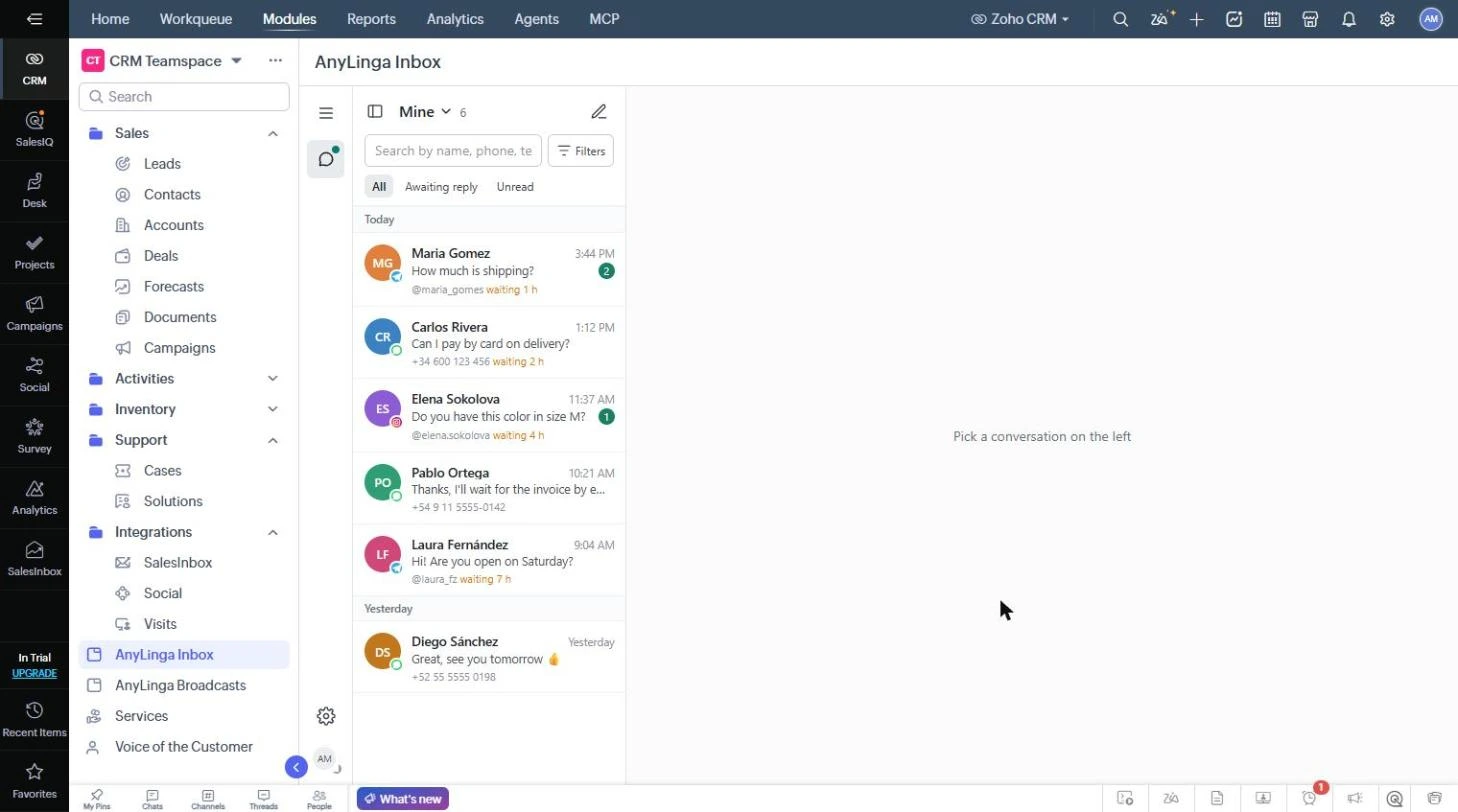
Client messages from connected WhatsApp, Telegram, and Instagram channels are available in the AnyLinga Inbox tab in the left menu in Zoho CRM. You can view an individual client's conversation in the AnyLinga block in their record.
What you'll need
- Your Zoho login.
- The AnyLinga extension installed in Zoho. If you don't have it yet, install the AnyLinga extension in Zoho.
- The channels whose conversations you want to see connected to AnyLinga.
How to find a conversation in AnyLinga Inbox
1. Open the AnyLinga Inbox tab
- Select AnyLinga Inbox in the left menu in Zoho.
- All conversations from all connected channels are collected here.
You don't need a separate password: you sign in with your Zoho login. Employee access is created automatically the first time they open the tab.
2. Find and select a conversation
- Select a tab above the list: All, Awaiting reply, or Unread.
- Search by name or phone number, or open Filters.
- Select a conversation on the left to open it on the right.
How to view a conversation in a record
3. Open the AnyLinga block in the client's record
- Open a lead, contact, or deal record.
- In the Related List on the left, select AnyLinga to see the conversation with the client.
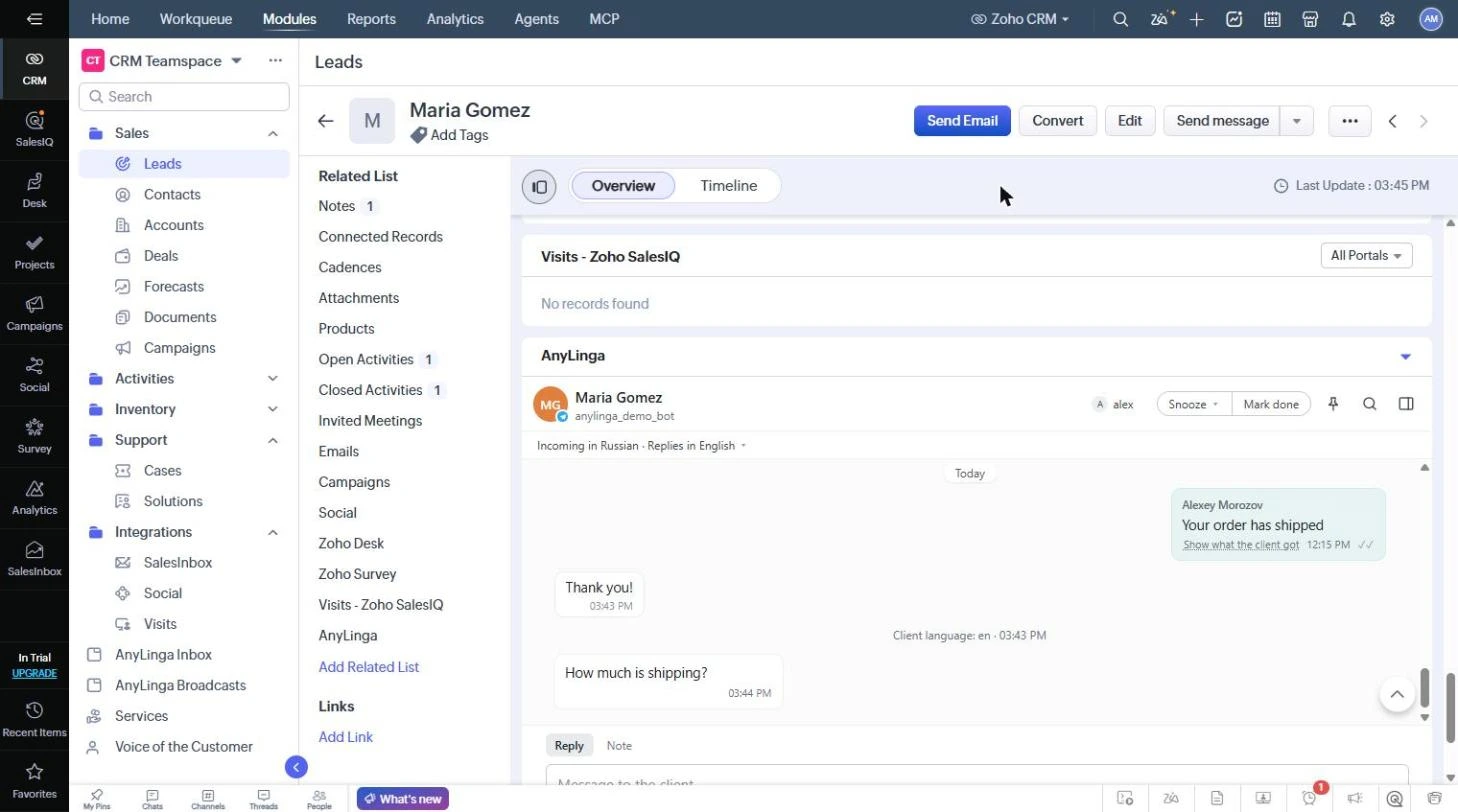
In a deal record, the block shows the conversation with the deal's contact. Task records also have an AnyLinga block showing the conversation with the client linked to the task.
4. Check the conversation with the client
- If there is no conversation, the block displays No conversations with this client yet.
- To message the client first, click Send message.
You can work with the conversation just as in AnyLinga Inbox: assign an owner, add notes, snooze, or complete it.
Related questions
Reply to a client from Zoho · Message a client first · Work with conversations in AnyLinga Inbox
Did you find this article helpful?
Get in touch
We reply during business hours.
New to AnyLinga?
Try it yourself, or we'll set it up for you when you pay for the first month.