
What happens in Zoho CRM when a new client sends a message
When a client sends a message to a connected channel, AnyLinga searches Zoho CRM for a contact or lead with the same phone number. If it finds a record, it links the message to it. If not, AnyLinga creates a lead, adds a note about the message, and marks the client as waiting for a reply.
What you'll need
- A channel connected to AnyLinga.
- An incoming message from a client.
- Access to the client's record in Zoho CRM to check it.
What appears after the first message
1. Check the new record
- If no record has the same phone number, AnyLinga creates a lead.
- The new record includes the name, mobile phone number, and source channel in the description.
Clients from Telegram and Instagram arrive without a phone number. These records will not be included in WhatsApp broadcasts.
2. Open the “Notes” related list
- The Notes related list contains a note that says “New inquiry in <channel>: <message text>”.
- For Telegram, the note contains the text “New inquiry in Telegram: …”.
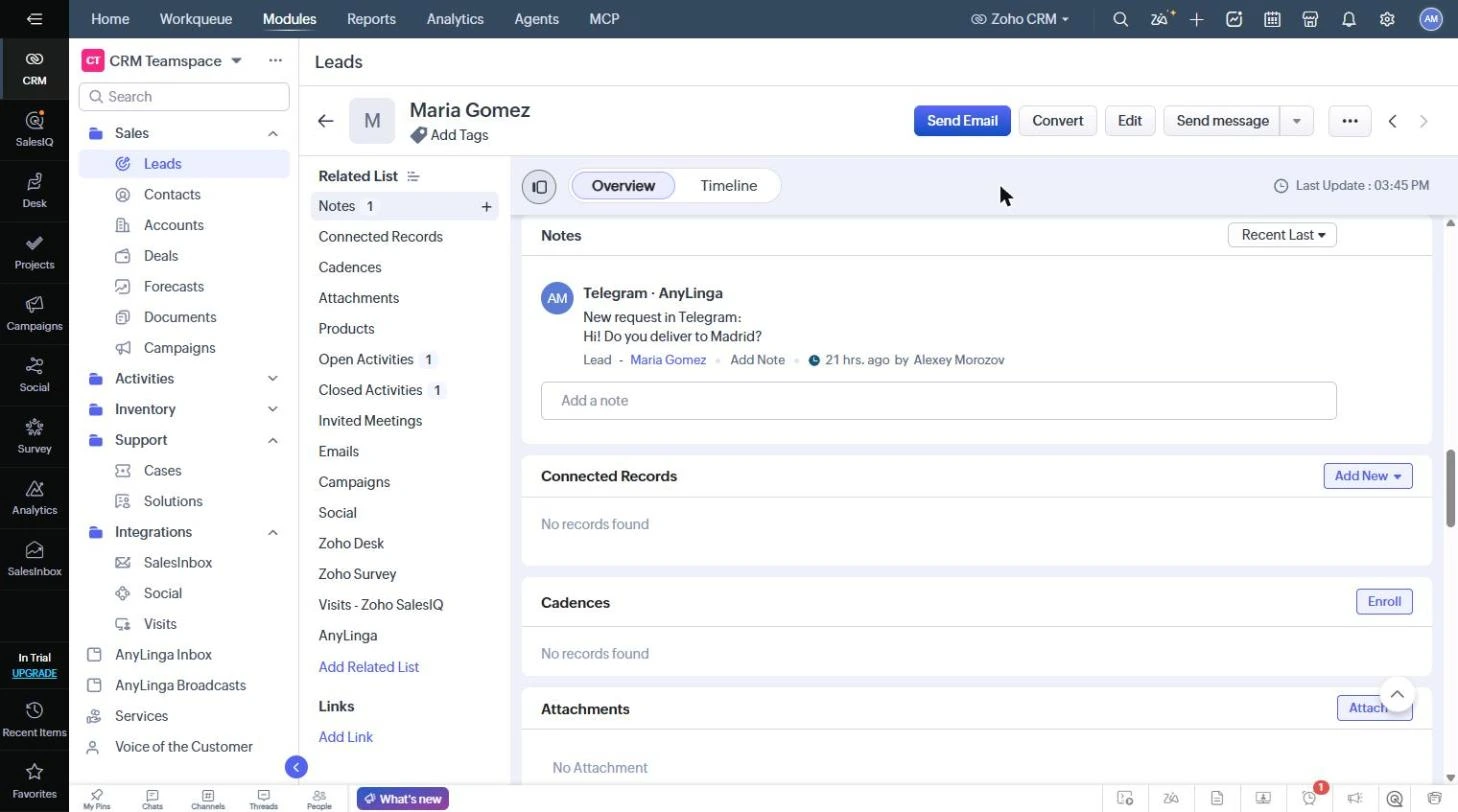
3. Check the waiting-for-reply status
- The record is marked Waiting for reply.
- The Last inbound message field shows the time of the incoming message.
4. Check the notification to the record owner
- The record owner receives a notification under the Zoho bell icon if the record has an email address.
- If tasks for new messages are enabled, the record owner receives a task.
Bell notifications are available only for records with an email address. This is a Zoho limitation.
If the client is already in Zoho CRM
If AnyLinga finds a contact or lead with the same phone number, it links the message to that record. No new record is created.
You can view the conversation in the AnyLinga block in the record and in the AnyLinga Inbox tab.
Related questions
Which clients need a reply · Task for a new message · Where to view client messages
Did you find this article helpful?
Get in touch
We reply during business hours.
New to AnyLinga?
Try it yourself, or we'll set it up for you when you pay for the first month.