
How to see which clients need a reply
In Zoho CRM, open the Leads or Contacts module and select the Waiting for reply · AnyLinga view. It lists clients awaiting a reply and shows the time of their last inbound message.
What you'll need
- AnyLinga is connected to Zoho CRM.
- You work with records in the Leads or Contacts module.
- To check an individual client, open their record; for the full list, open the module table.
How to check an individual client
1. Find the fields in the record
- Open a lead record and go to Overview.
- Scroll to the very end of the lead details section, right above Address Information: this is where you will find Waiting for reply and Last inbound message.
- In a contact record, look for these fields in the contact details section.
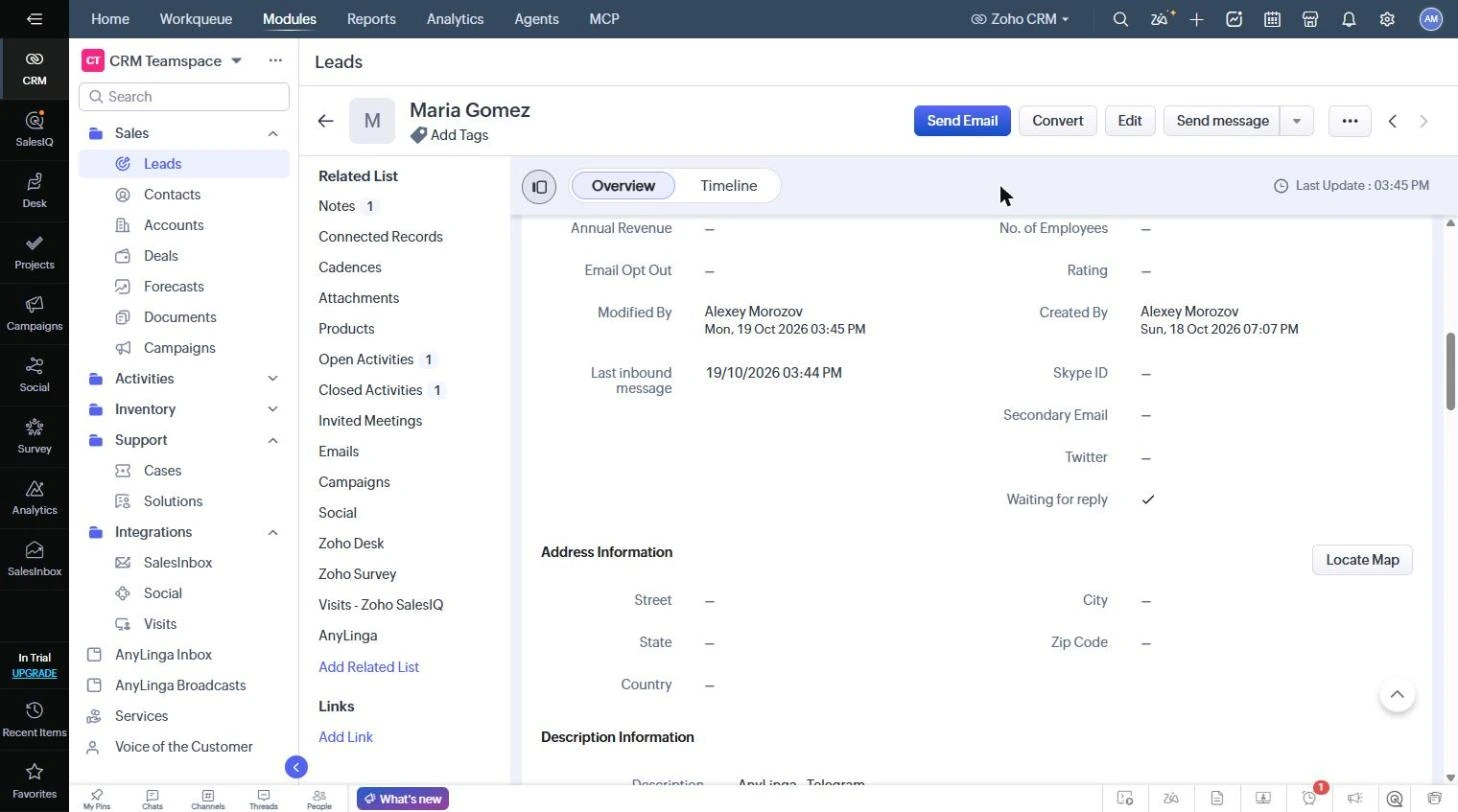
These are record fields, not a note. You do not need to look for them in Notes.
2. Check the checkbox and inbound message time
- Waiting for reply is a checkbox indicating that a reply is needed. An inbound message from the client selects it.
- Last inbound message is the date and time of the last inbound message.
- Replying to the client from AnyLinga Inbox, from a phone, through n8n, or with a scheduled message clears the checkbox. The Last inbound message value does not change.
How to open the list of clients awaiting a reply
3. Select the view for clients awaiting a reply
- Open the Leads or Contacts module.
- In the view dropdown above the table, select Waiting for reply · AnyLinga.
- The table will show clients whose Waiting for reply checkbox is selected. Check the Last inbound message column for the time of the last inbound message.
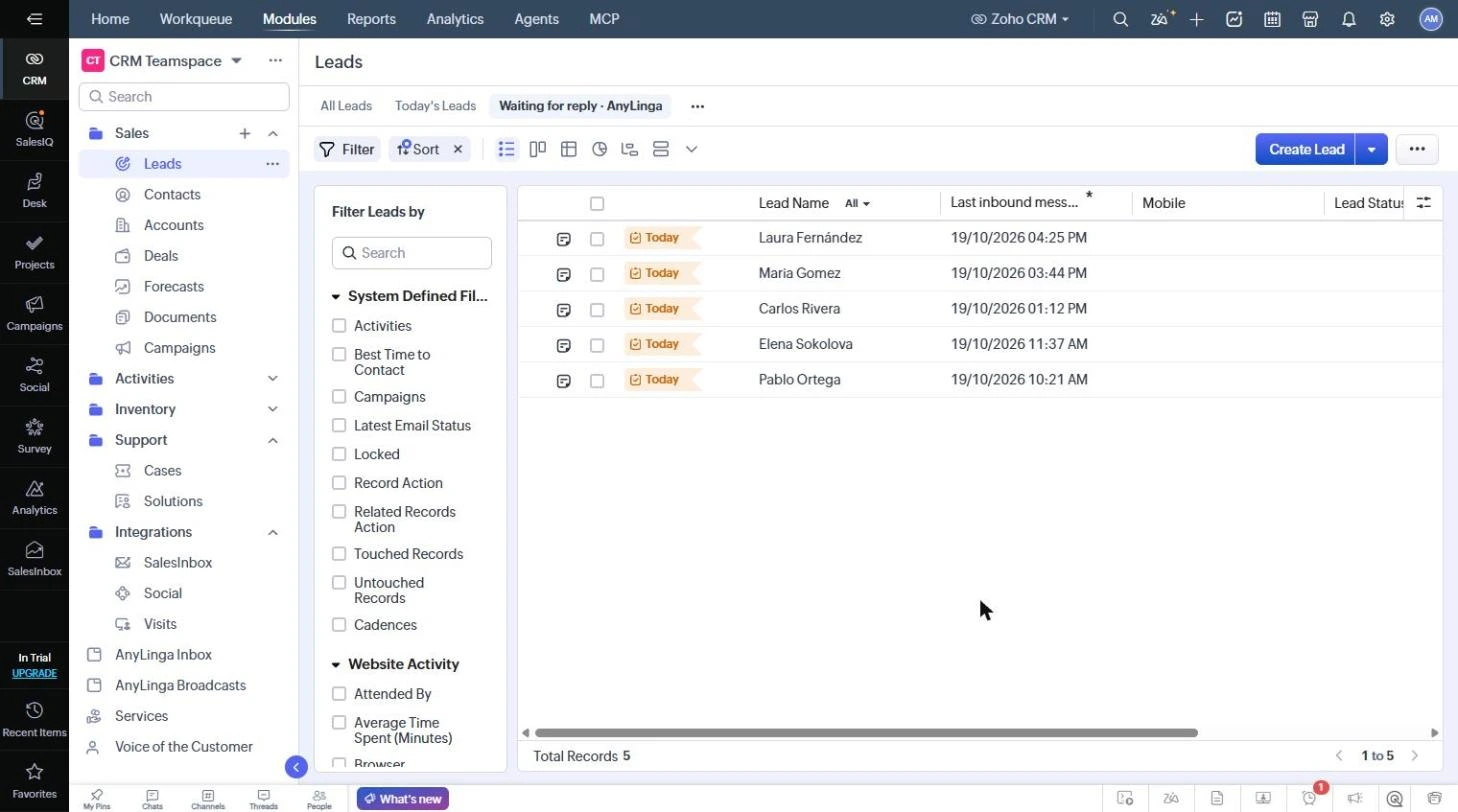
AnyLinga automatically creates this view in both modules when connected and every night. If you delete the view, it will return.
4. Use another quick option
- In AnyLinga Inbox, open the Awaiting reply tab.
- In Zoho CRM, you can also open the “Clients awaiting reply” queue in “Workqueue”.
Related questions
Task for a new message · Where to see client messages
Did you find this article helpful?
Get in touch
We reply during business hours.
New to AnyLinga?
Try it yourself, or we'll set it up for you when you pay for the first month.